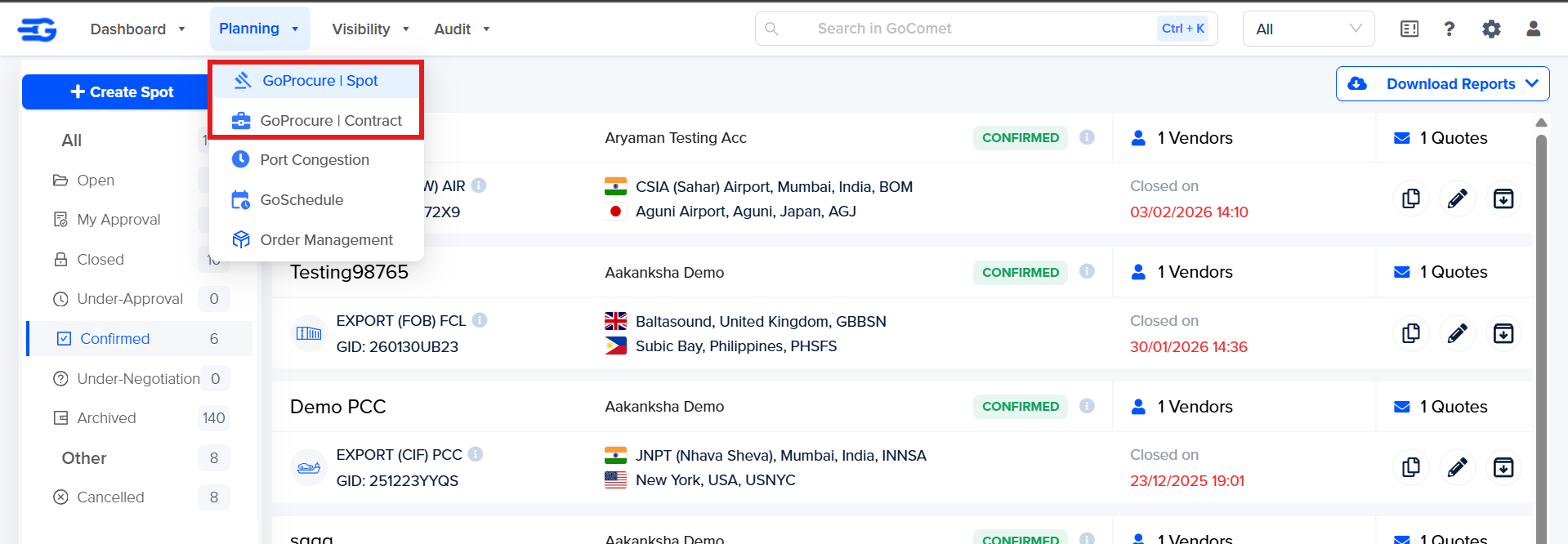
Step 1 – Click on "GoSpot" or "GoContract" as per requirement
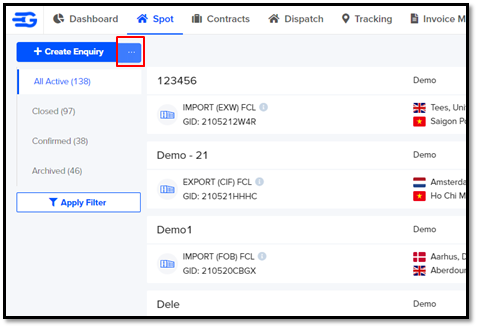
Step 2 – Click on three dots beside the “Create Enquiry” button, where a drop-down menu will appear
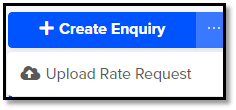
Step 3 - Click on “Upload Rate Request”
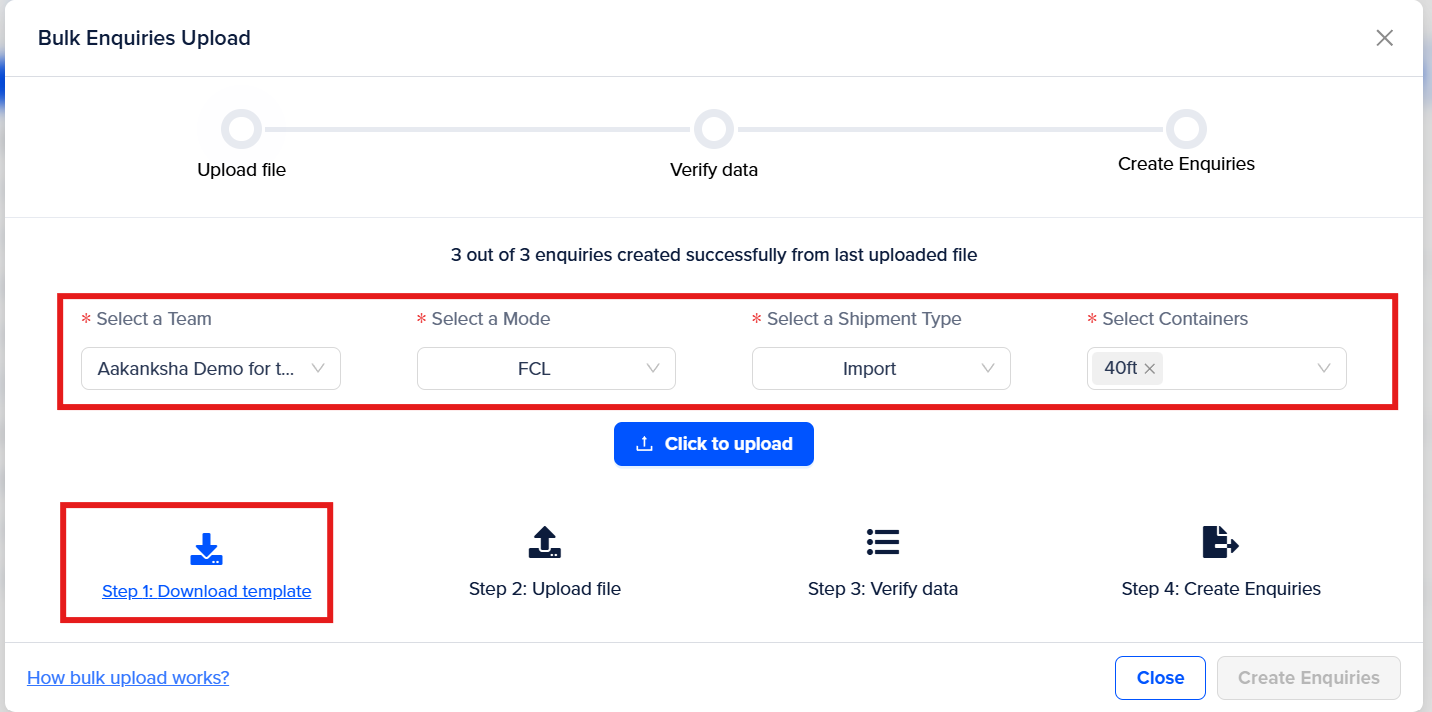
A new dialogue box will pop up as shown below
Step 4 – Select the right team, Mode, Shipment Type, etc. to which enquiries are to be uploaded and Click on the "Download template" to download the excel file.
Once you open the excel file format, the required details will be needed to be filled in in order to upload the file.
Step 5 : Fill in at least the mandatory details in the Excel Sheet (Reference Number, Bid Close Time, Incoterm, POL, POD
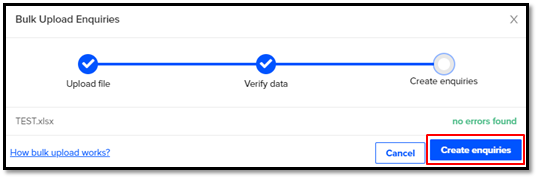
Step 6 – Click on “Create enquiries” once the file which you have uploaded on the platform is error-free.
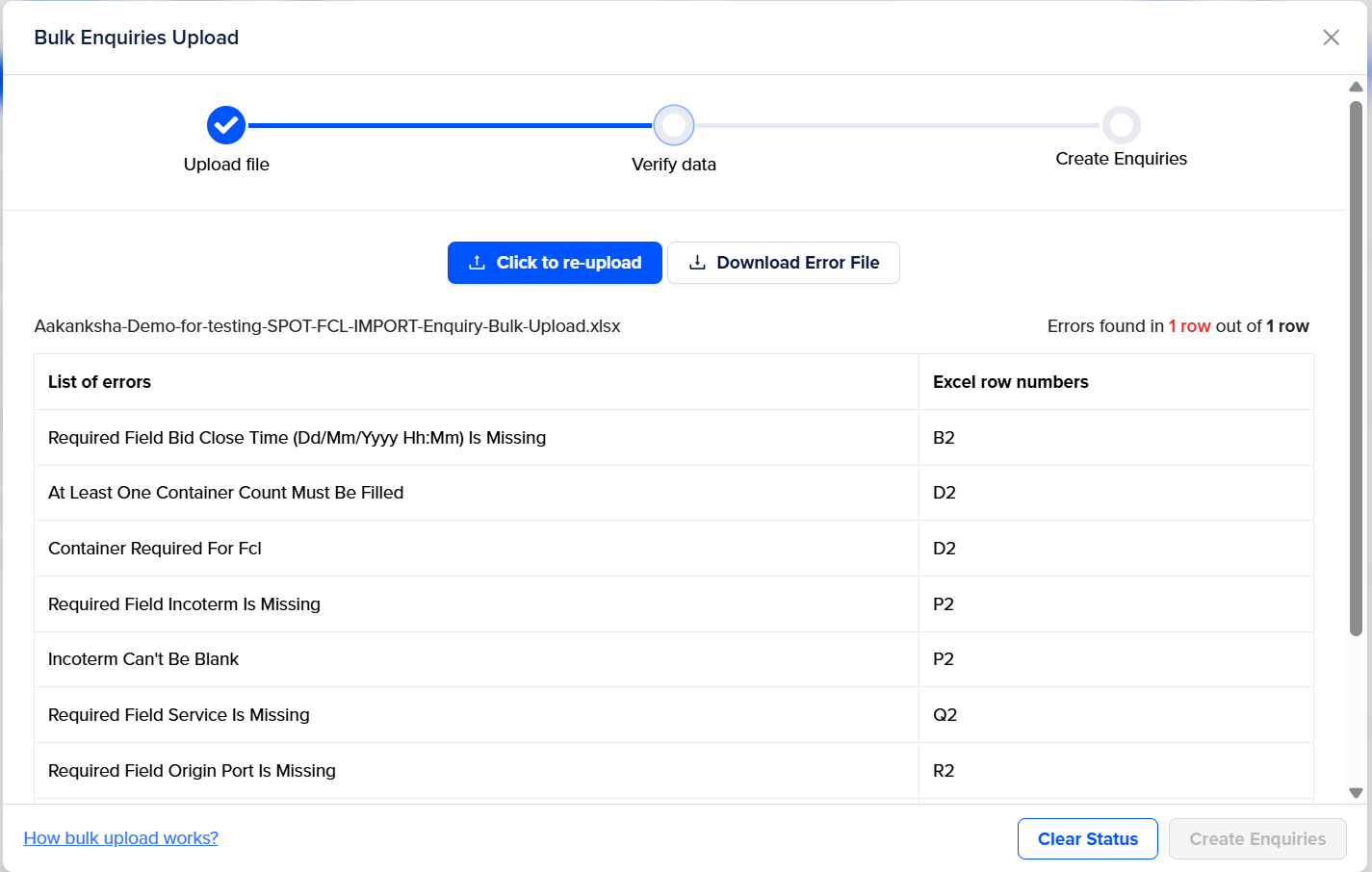
Note: In case there is any error in the Excel file data which you have uploaded, a dialogue will appear as below, which will show the exact error occurring in the file, which can be rectified as per the row and column no. and then re-uploaded in the system.
Step 7 – The enquiries uploaded will be reflected on the dashboard under GoSpot/GoProcure.
Was this article helpful?
That’s Great!
Thank you for your feedback
Sorry! We couldn't be helpful
Thank you for your feedback
Feedback sent
We appreciate your effort and will try to fix the article