If your shipment shows as "Invalid" on the platform, it means the shipment data could not be found or verified from the carrier.
This article explains common reasons for invalid tracking and how you can fix them step-by-step.
A. Why is my shipment marked invalid?
Reasons why the shipment might be invalid currently :
1. The shipment you are trying to track is a future shipment
Shipments that are yet to start or starting on a later date, may not be available on the carrier’s database at the time of creation.
You can make your shipment a future shipment by adding a dispatch date or estimated departure.
Actionable :
Adding Dispatch Date [Click here to know how to take this action ]
Adding Estimated Departure Date [ Click here to know how to take this action ]
2. Shipment is not in a valid format.
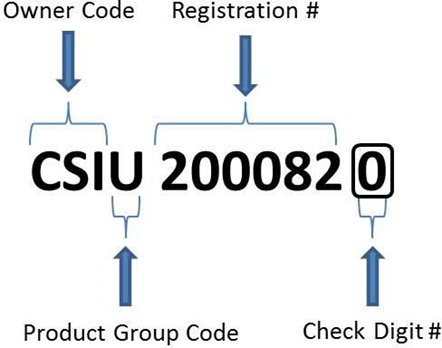
a. Please check if the tracking number is for a container. If it is, make sure that it is in the format of
4 Alphabets + 7 Digits
E.g: MAEU1234567
Actionable: Edit shipment to the right tracking number [ Click here to know how to take this action ]
b. Please check if the tracking number belongs to the right carrier.
Actionable: Edit shipment to the right tracking number [ Click here to know how to take this action ]
B. Tracking number format error, why it happens
Reasons:
a. Please check if the tracking number is a container.
If it is, make sure that it is of the format of 4 Alphabets + 7 Digits
E.g: MAEU1234567
Actionable: Edit tracking number [ Click here to know how to take this action ]
b. Every carrier has a certain prefix or owner code attached to the tracking number.
For eg, Maersk used MAEU, ad MRKU, as prefixes for tracking numbers.
Actionable: Edit tracking number [ Click here to know how to take this action ]
C. Why do I need a BL number for full shipment details?
Reason :
, Certain shipping lines EGLV [ Evergreen ], BLPL etc
Only show the latest event when searched with container numbers.
In such cases, adding a BL/ Booking number will help you get the full schedule of your shipment.
Actionable: Change Container number to Bl Number [ Click here to know how to take this action ]
D. Carrier is not found
Reason: This happens when the carrier is not mentioned or not found on the platform. In such cases,
- Either the entered carrier is misspelt
Actionable: You can check the availability of existing carriers by going through the bulk upload template. [ Click here to know how to take this action ]
b. Carrier is not supported on the platform
Actionable: You can email support@gocomet.com,
You can also request the carrier if not present. All you need to provide are the following :
Requested carrier name :
A recent bl number :
A recent container number :
The current source of tracking: Website/call/sms/email
Volume {Optional; Volume of containers you deal with monthly }
E. Your entered POL and POD not match the carrier's POL and POD
Such cases come up in action-requiring segments of reports or platforms. Reason :
1.) Port of loading or discharge entered is different from the bl. In such cases, we alert the user.,
Note: We don’t track shipments until action is taken on them.
Actionable: Autofix or change ports. [ Click here to know how to take this action ]
.2.) Ports have changed due to delays or traffic In such cases, we alert the user.
Note: We don’t track shipments until action is taken on them.
Actionable: Autofix or change ports. [ Click here to know how to take this action ]
Note: In case of any doubts or errors on the shipment,you can simply report the error.[ Click here ]
F. Factory Dispatch date error
Dispatch date is the factory dispatch, which takes place before gate in for your cargo. This error is raised when our system find this date ahead of gate in date.the
Reason :
1.) Users may be trying to track the next leg of the containers but the data is only present for the previous leg.
Our system provides a buffer of +5 days, considering human error in this as dispatch date is not readily available.
We will mark the shipment as yet to start if old leg data is available in the carrier's database till the dispatch date you have entered.
Actionable: Add dispatch date before gate-in date. [ Click here to know how to take this action ]
2.) The user might have entered the wrong dispatch date
Actionable: Add dispatch date before gate-in date. [ Click here to know how to take this action ]
Note: In case of any doubts or errors on the shipment, you can simply report the error.
Actionable for tracking ID format not matching:
Step 1: Log in to the platform and search for the particular tracking on the platform. Click on the “More” option to the right of the tracking

Step 2: Click on the “Edit” option to make changes to the shipment.

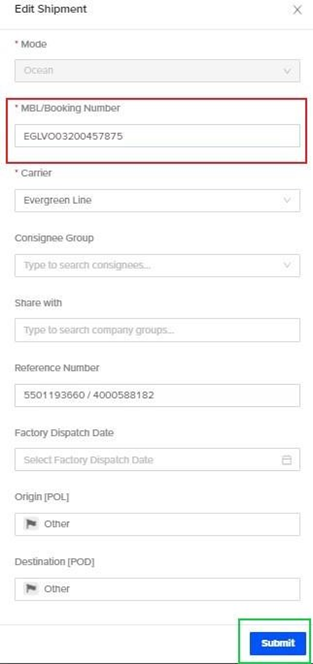
Step 3: A modal will pop up Now edit the BL number as per the correct tracking number and click on the “submit” button. The shipment will be added for tracking successfully.
Actionable for invalid tracking:
Step 1: Log in to the platform and search for the particular tracking on the platform. Click on the “More” option to the right of the tracking

Step 2: Click on the “Edit” option to make changes to the shipment.

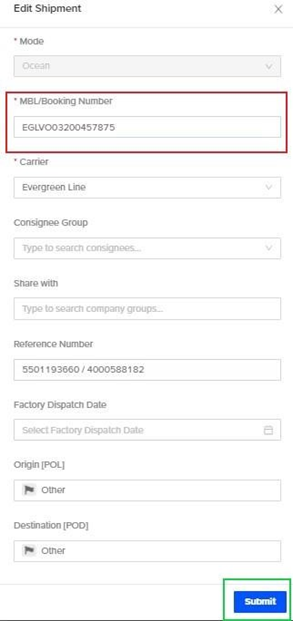
Step 3: A modal will pop up Now edit the BL number to correct BL, or a new BL number depending upon your use case and click on the “submit” button. The shipment will be added for tracking successfully.
Actionable for tracking, not found on mentioned shipping line website:
Step 1: Log in to the platform and search for the particular tracking on the platform. Click on the “More” option to the right of the tracking.

Step 2: Click on “Edit” option to make changes to the shipment.

id=""
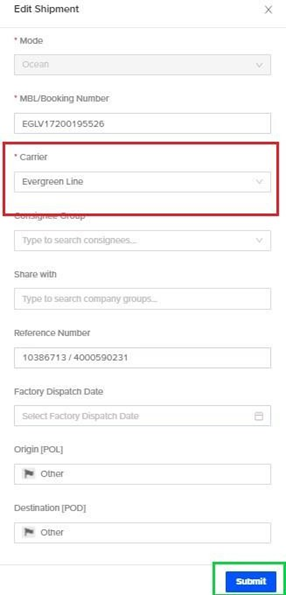
Step 3: A modal will pop up Now edit the carrier name as per the correct one and click on the “submit” button. The shipment will be added for tracking successfully.
Actionable for the need BL no. for the complete schedule of the shipment:
Step 1: Log in to the platform and search for the particular tracking on the platform. Click on the “More” option to the right of the tracking.

Step 2: Click on “Edit” option to make changes to the shipment.

Step 3: A modal will pop up. Now edit the carrier name as per the correct one and click on the “submit” button. The shipment will be added for tracking successfully.
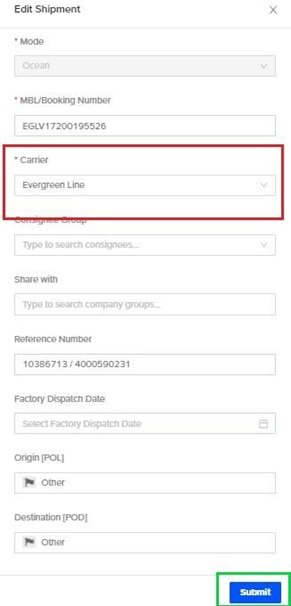
Actionable for carrier not found:
Step 1: Log in to the platform and search for the tracking on the platform. Click on the “More” option to the right of the tracking.

Step 2: Click on the “Edit” option to make changes to the shipment.

Step 3: A modal will pop up. Now edit the carrier name as per the correct one and click on the “submit” button. The shipment will be added for tracking successfully.
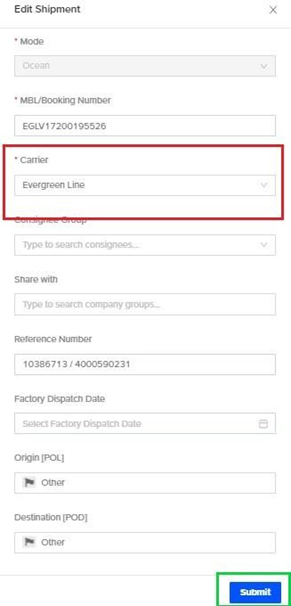
Actionable for carrier name not found:
Step 1: Log in to the platform and go to “tracking bulk upload” appearing on the top right of the platform.

Step 2: Click on “Download template” option to download bulk upload sheet.
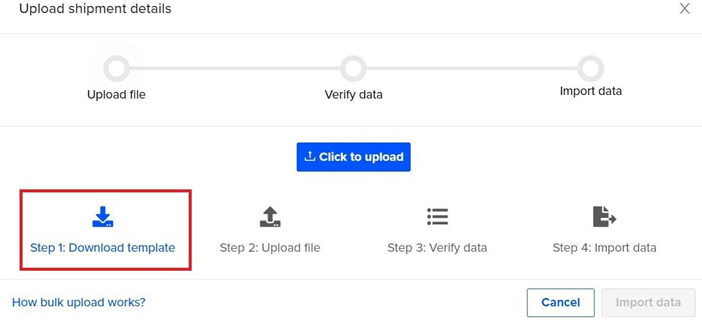
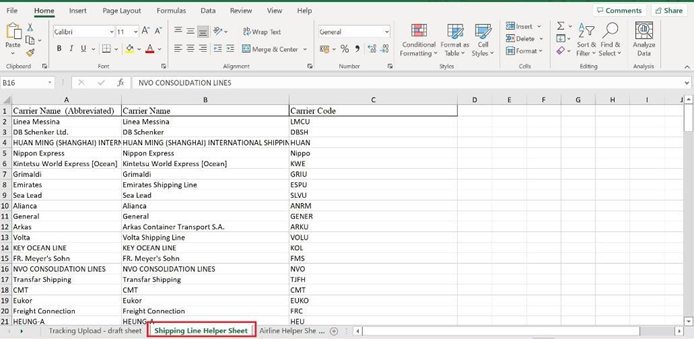
Step 3: In the spreadsheet, go to the Shipping Line helper Sheet to see if the carrier you are trying to add is integrated with Go Comet.
- Search for the carrier name in this sheet to see if you have typed in the exact name (name should match the B column of the sheet)
- If the carrier is still not found, contact support@gocomet.com for further assistance
Dispatch date error & adding dispatch date:
Step 1:Log in to the platform and search for the tracking on the platform. Click on the “More” option to the right of the tracking.

Step 2: Click on “Edit” option to make changes to the shipment.

Step 3: A modal will pop up. Now edit the dispatch date to be greater than gate in date. Note: Dispatch date is the date when the goods leave your factory, it should ideally be greater than Gate In (First milestone that appears in table view, marked in green in the below screenshot).
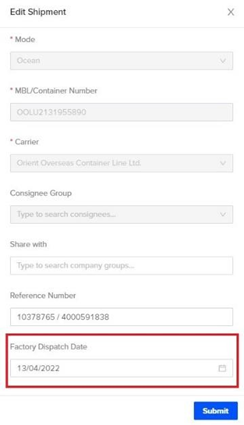
As seen here in the example tracking, the dispatch date is mentioned as 13 April 2022, but the tracking has the Gate in date as 31 Mar 2022 (Marked in green box). Here, the dispatch date was not ahead of Gate in date
which resulted in the error.

Step 4: If the problem still persists, you can contact support@gocomet.com for assistance or click on “report error” on the tracking.
POL POD Mismatch:
Step 1: Log in to the platform and go to the action required tab present on the right side
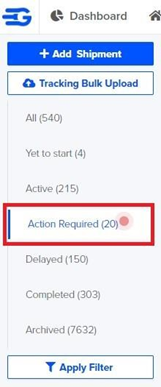
Step 2: Click on the tracking to take the necessary action.

Step 3: If the problem still persists, you can contact support@gocomet.com for assistance or click on “report error” on the tracking.
Was this article helpful?
That’s Great!
Thank you for your feedback
Sorry! We couldn't be helpful
Thank you for your feedback
Feedback sent
We appreciate your effort and will try to fix the article