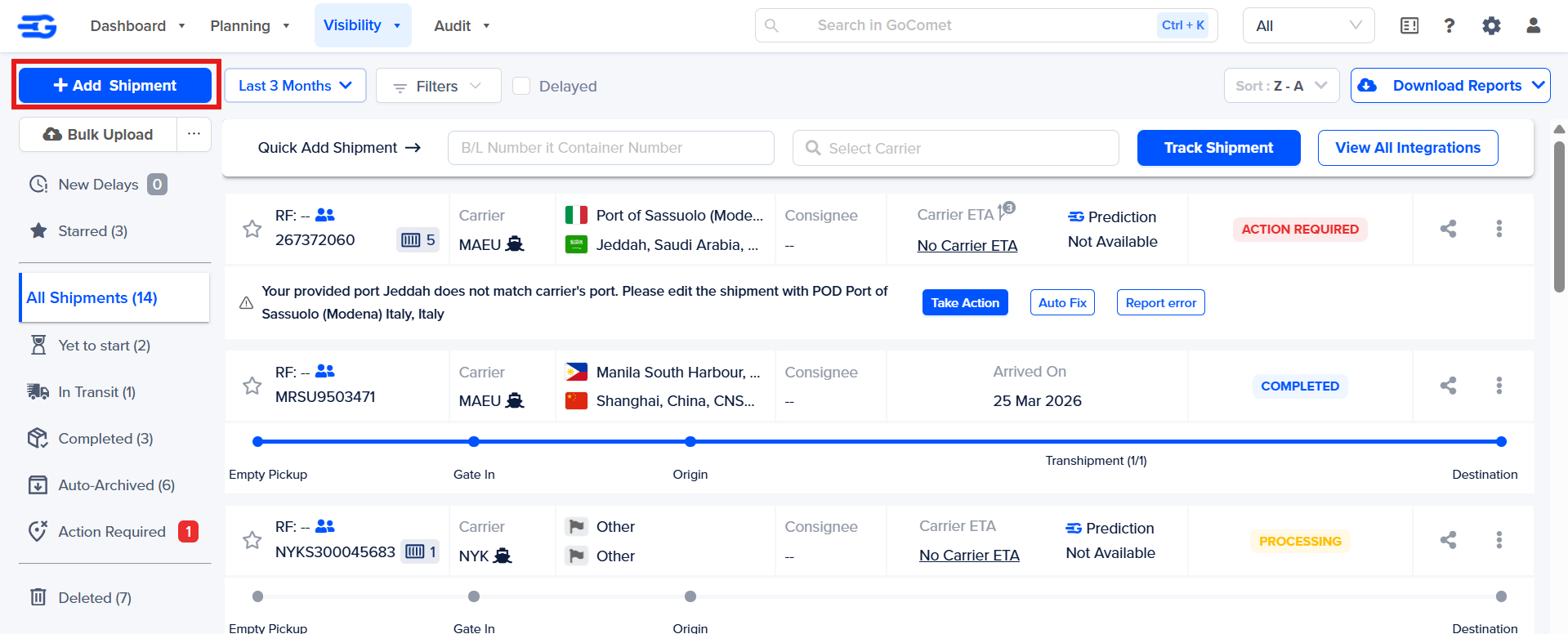
1. Click on the “Add Shipment” button on the top left side of the screen.
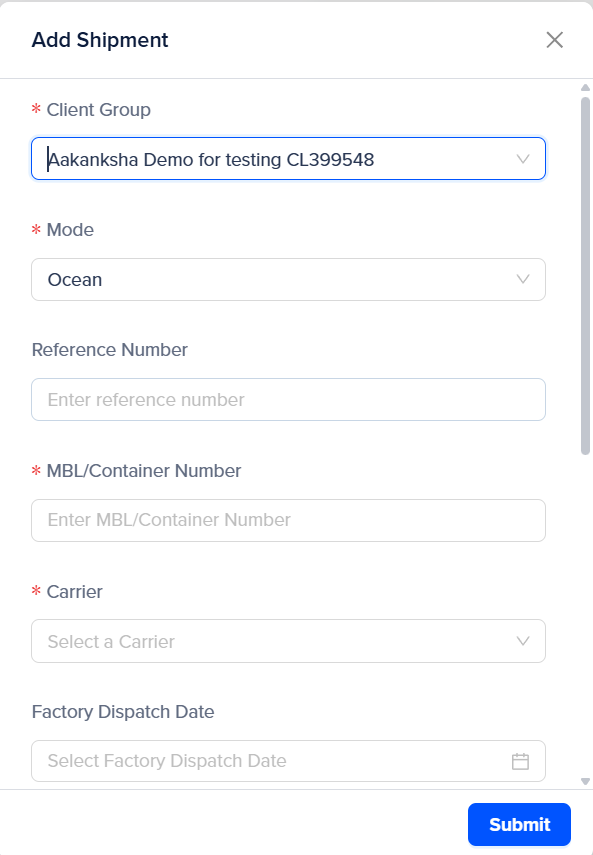
Fill in the details in the pop-up box:
Client Group - If a user is present in multiple groups, they need to select a group from which the shipment needs to be uploaded.
Mode - Ocean or Air (Mandatory)
Carrier– Name of the Shipping Company carrying the container. (Mandatory)
MBL/Container Number - Shipment is tracked using this number. (Mandatory)
[Note: If you are adding the ocean shipment using the HBL number, kindly add the name of the Freight Forwarder/NVOCC and not the shipping line]
Consignee - The receiver of the shipment. This stakeholder will be notified about the Arrival or Delay of the shipment
Reference number - A number given to the container that can be internal to the company.
Factory Dispatch date - The date on which the shipment left the factory.
Origin - Starting Port
Destination - Final Port
Enter the details and click on the "Submit" button. The tracking will then be fetched if available on the carrier website.
Was this article helpful?
That’s Great!
Thank you for your feedback
Sorry! We couldn't be helpful
Thank you for your feedback
Feedback sent
We appreciate your effort and will try to fix the article