Understanding document reading
Only certain document buckets have document reading feature for set service providers. To understand document reading we would need to understand:
Working of bucket with document reading feature
Service provider wise data reading
Initial certificate data reading
Last certificate data reading
Working of bucket with document reading feature
Document reading is set only for “Last Certification” and “Initial Inspection Certificate” buckets.
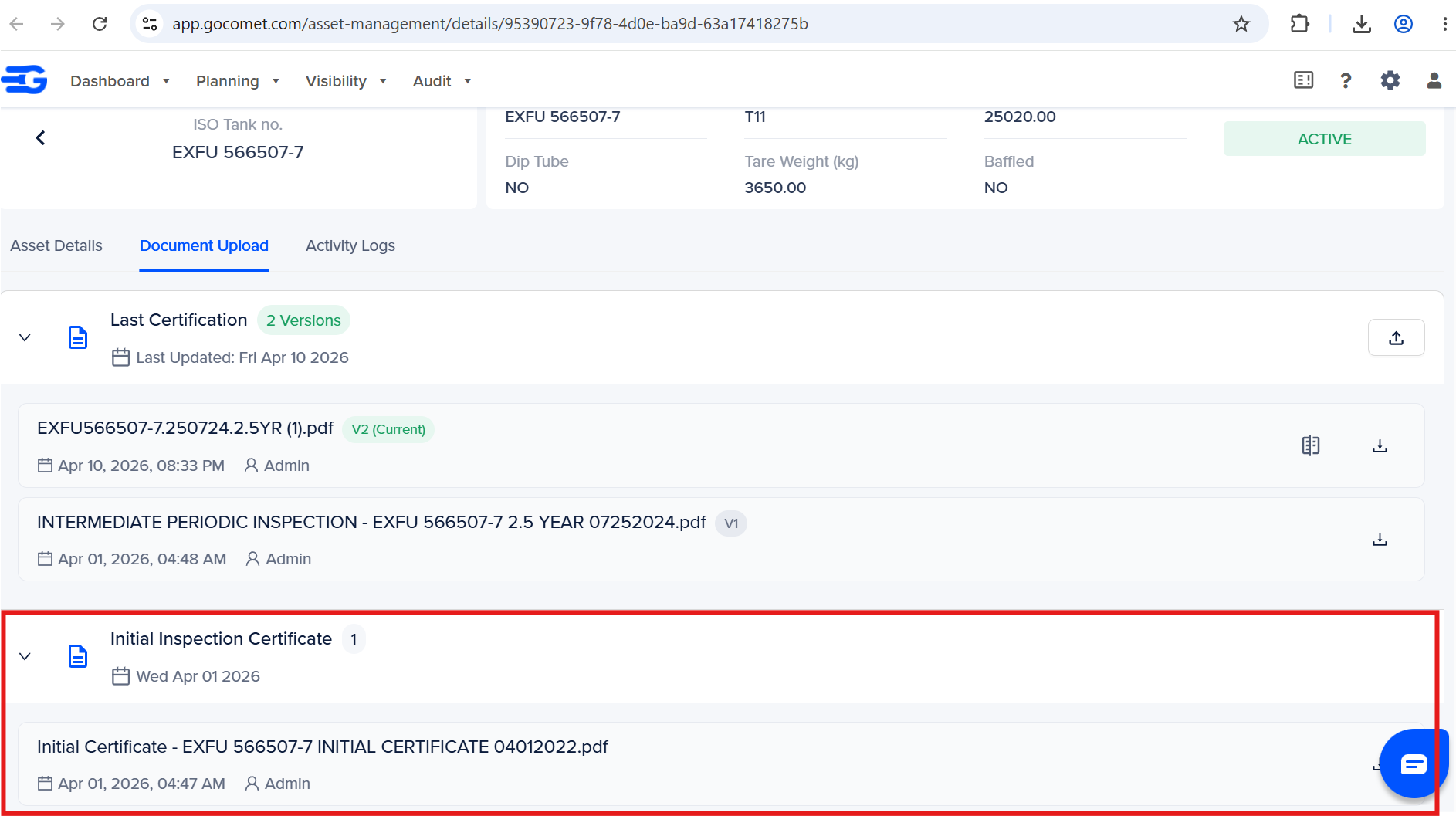
Initial certificate bucket
Can hold only one document - Be cautious while uploading this document
Document in this bucket is read only “Last Certification” bucket is empty
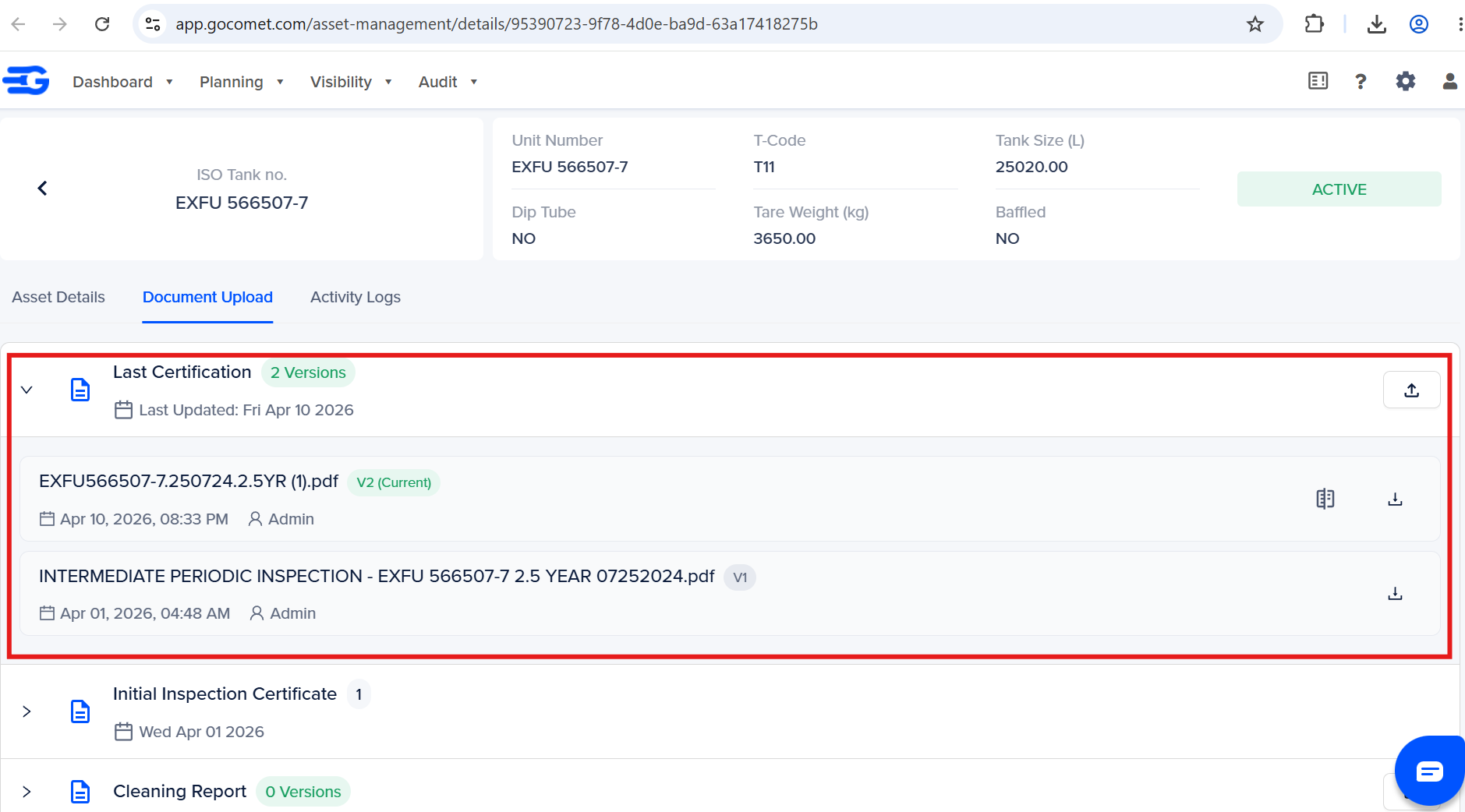
Last certification bucket
Can hold multiple documents
All uploaded documents are versioned in this bucket. Advise to upload only one document at a time
Document with the latest version is read
Note:
Only system generated documents can be read by GoComet.
Every time a new document is read, it overrides previous document details saved in the fields mentioned in the Service provider wise data reading section
Service provider wise data reading
Refer the below sections to understand what data is pulled from which service providers certificate, when it’s uploaded on GoComet.
Initial certificate data reading
Last certificate data reading
How is data read from a document
Follow these steps:
Once you upload a document in one of the document reading buckets
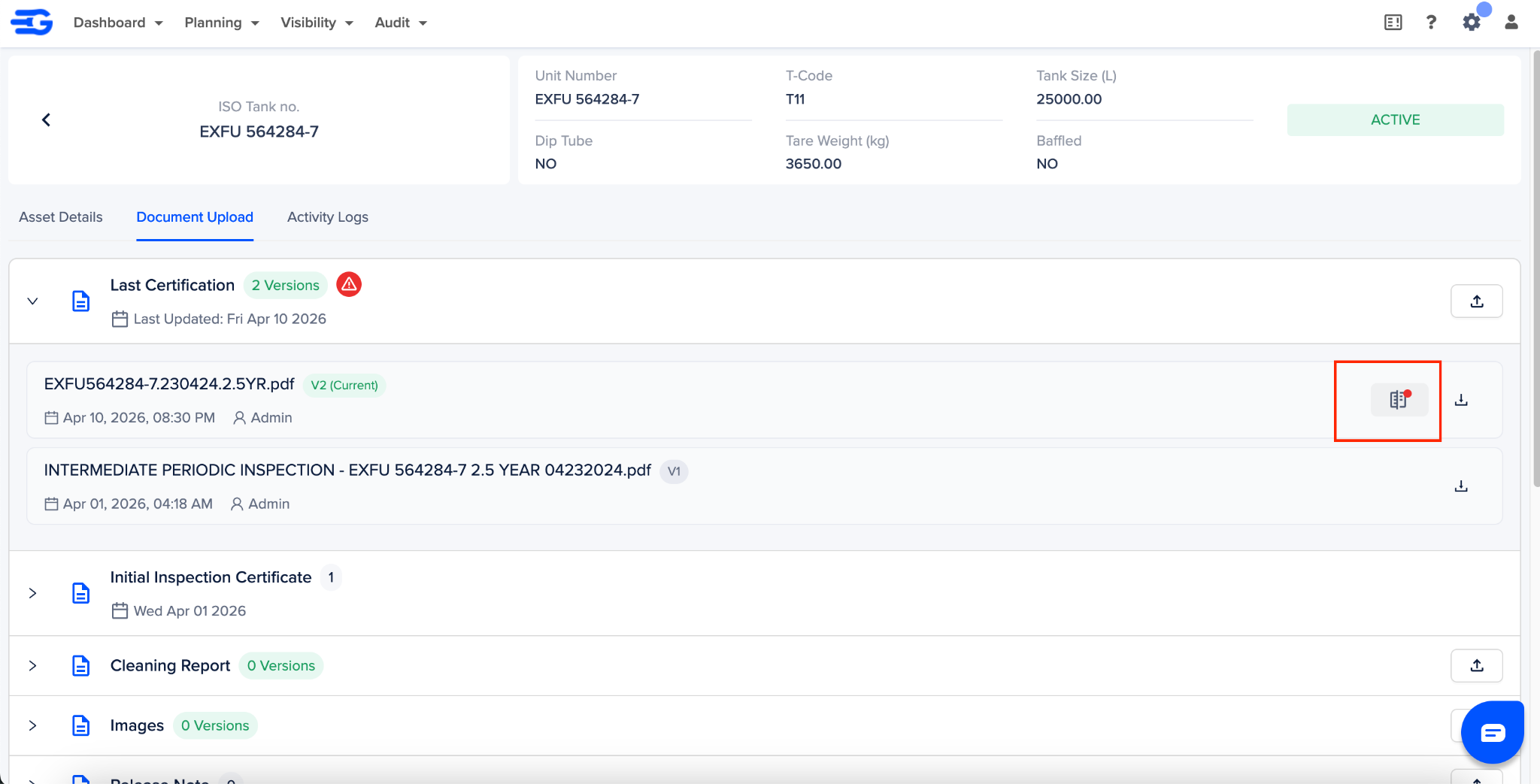
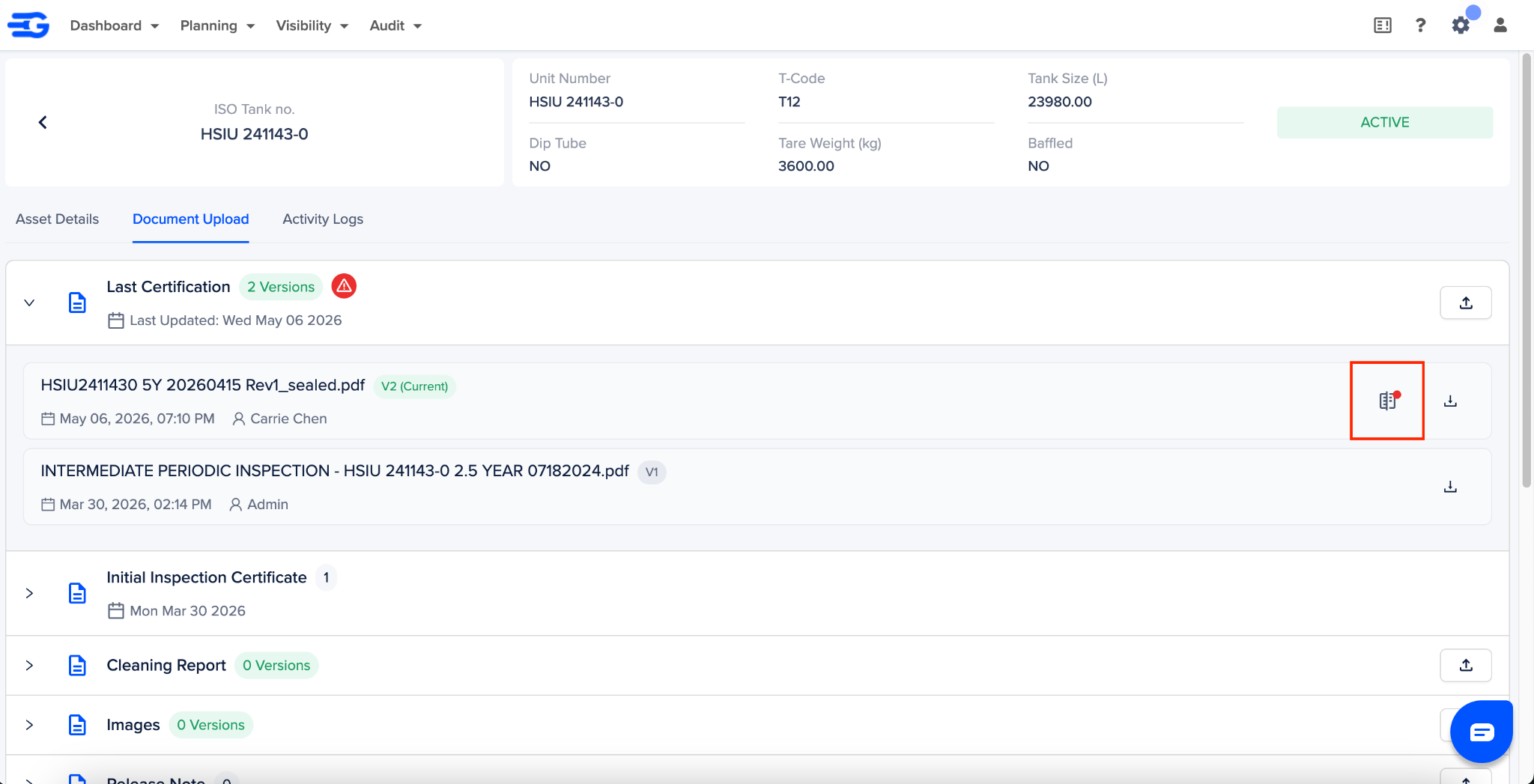
Click on “Document Reading (DR)” icon next to the document you have just uploaded.
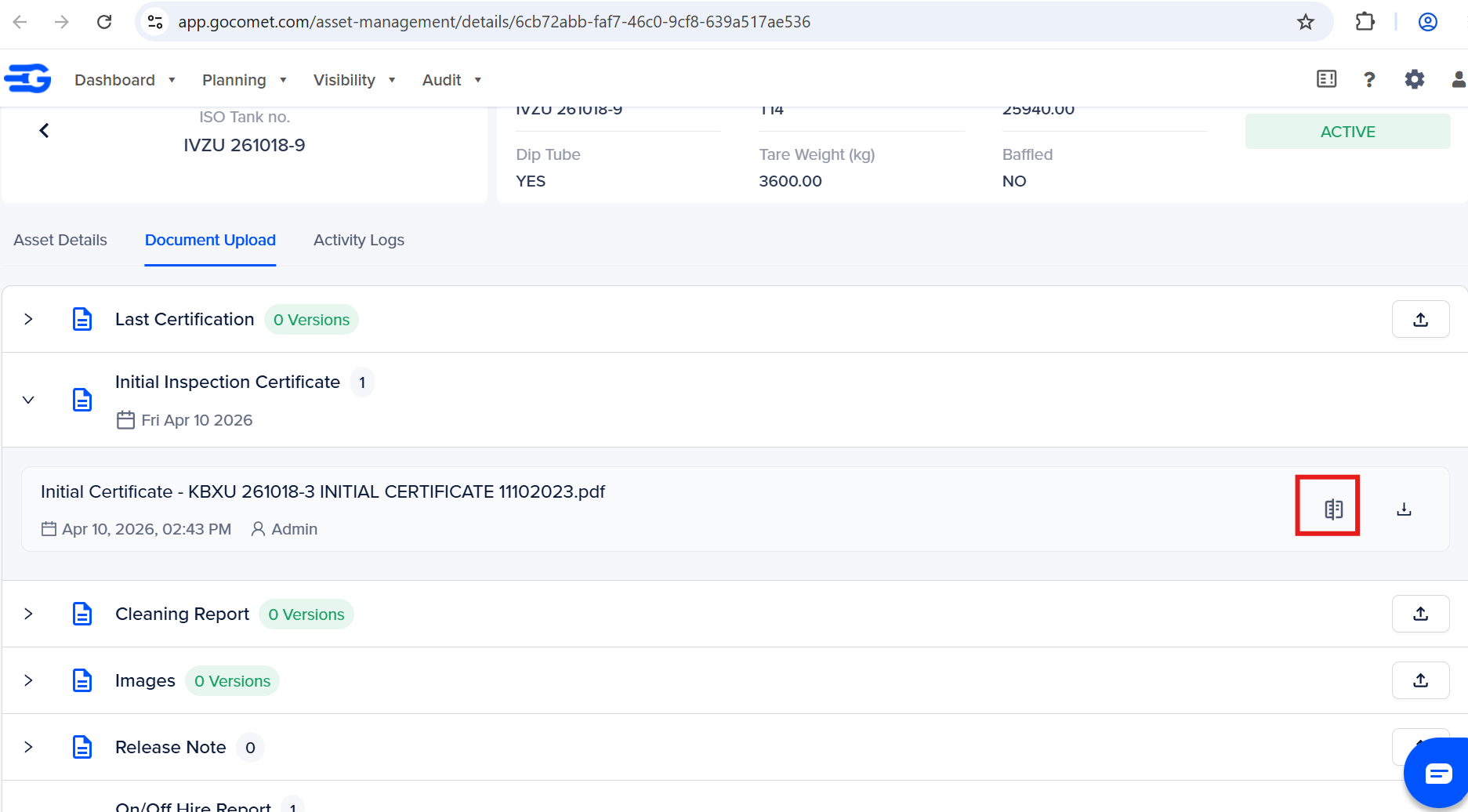
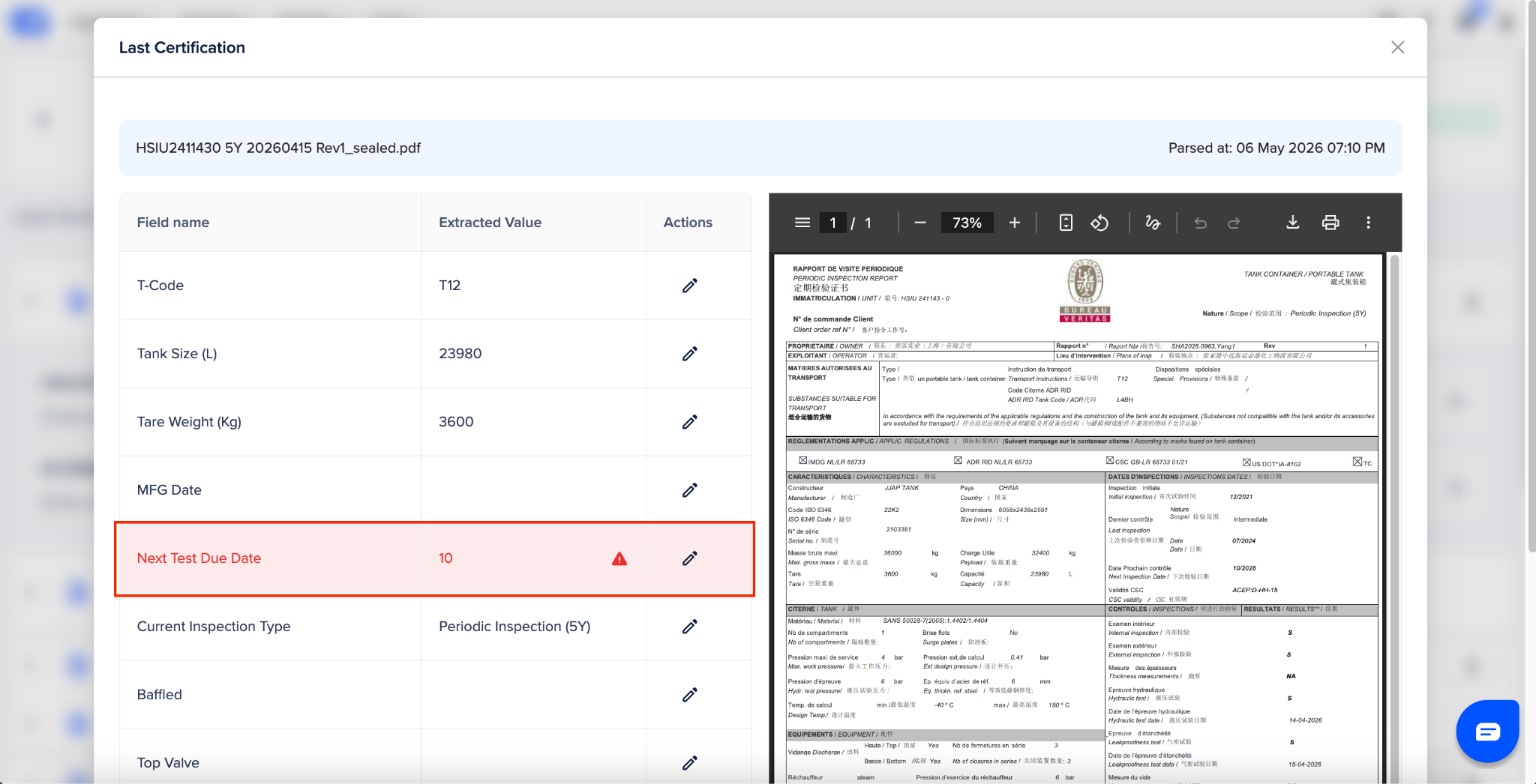
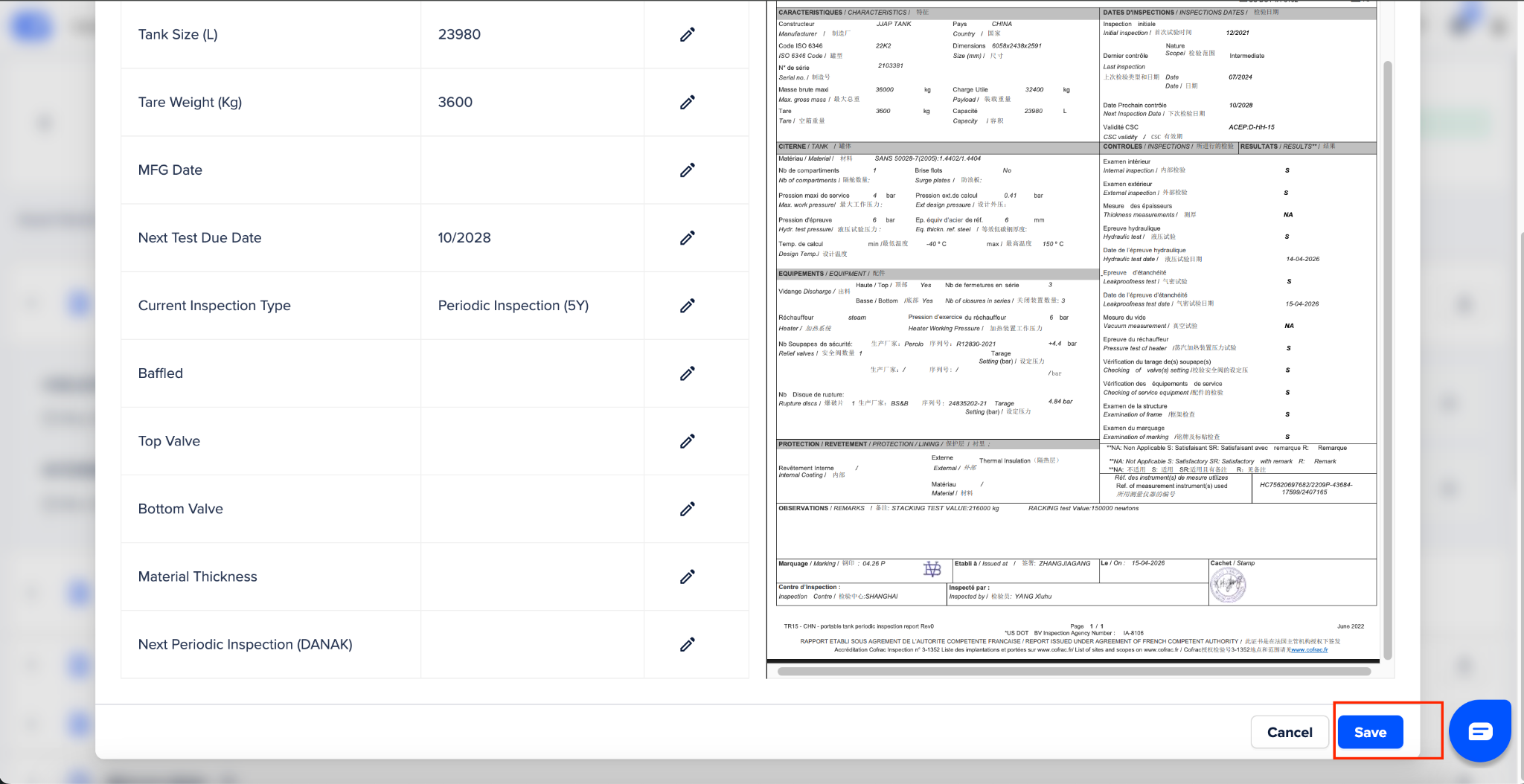
This will open a Document Reading modal, wherein you can find all the details extracted from this document
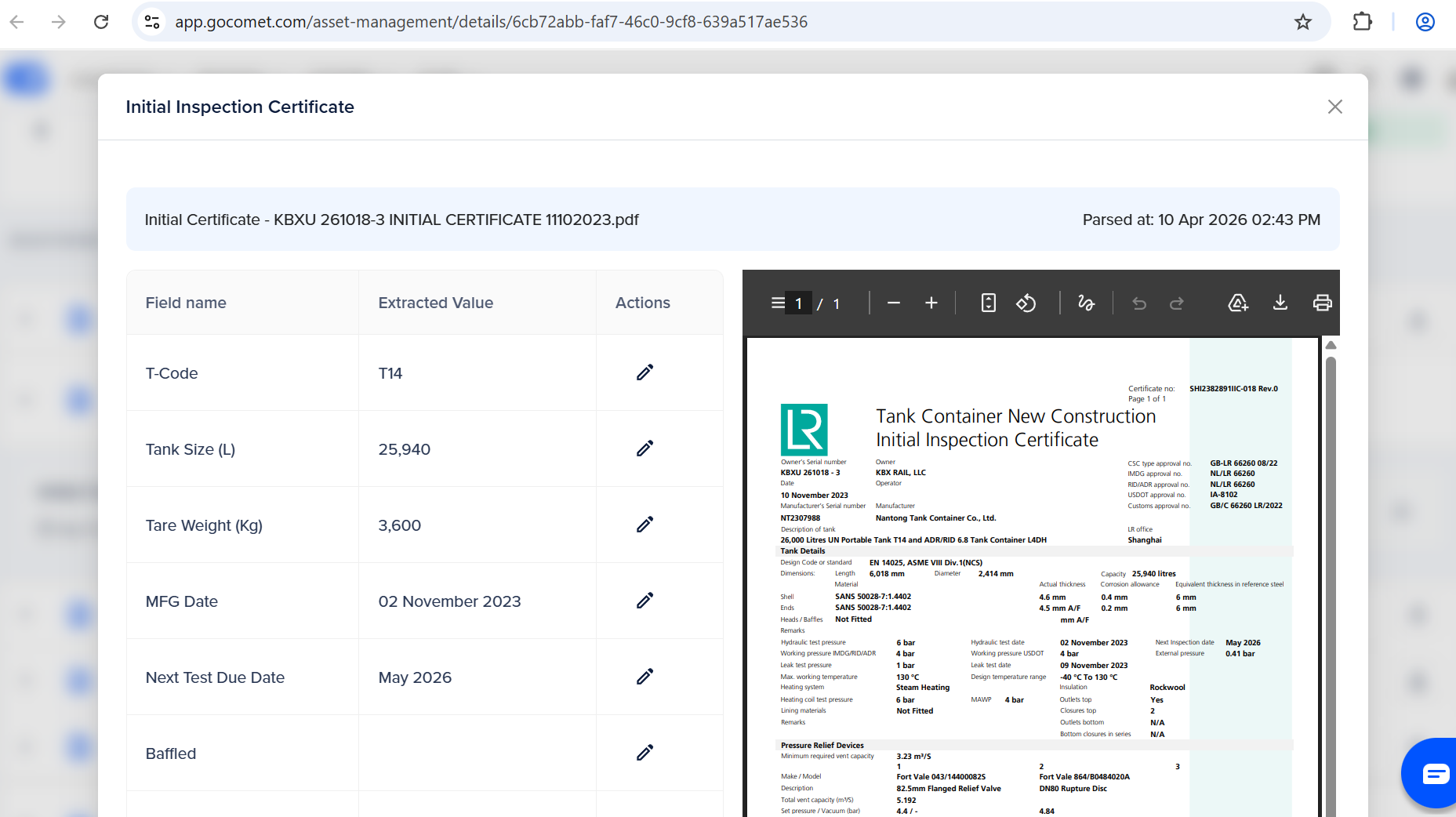
If all the defined fields as per the service provider are pulled correctly, the read fields are automatically saved and updated. In case of errors you’ll have to update the information and save it in the DR modal. Refer below section on “How to handle errors”
How to identify document reading errors
Once you upload a document and it’s parsed, as in read by GoComet, there can be certain cases in which document reading can fail. These errors can come up:
If uploaded document is not a system generated PDF
If format of the document is not set on GoComet
Due to some technical issue
There are a few markers on the platform to highlight document reading errors:
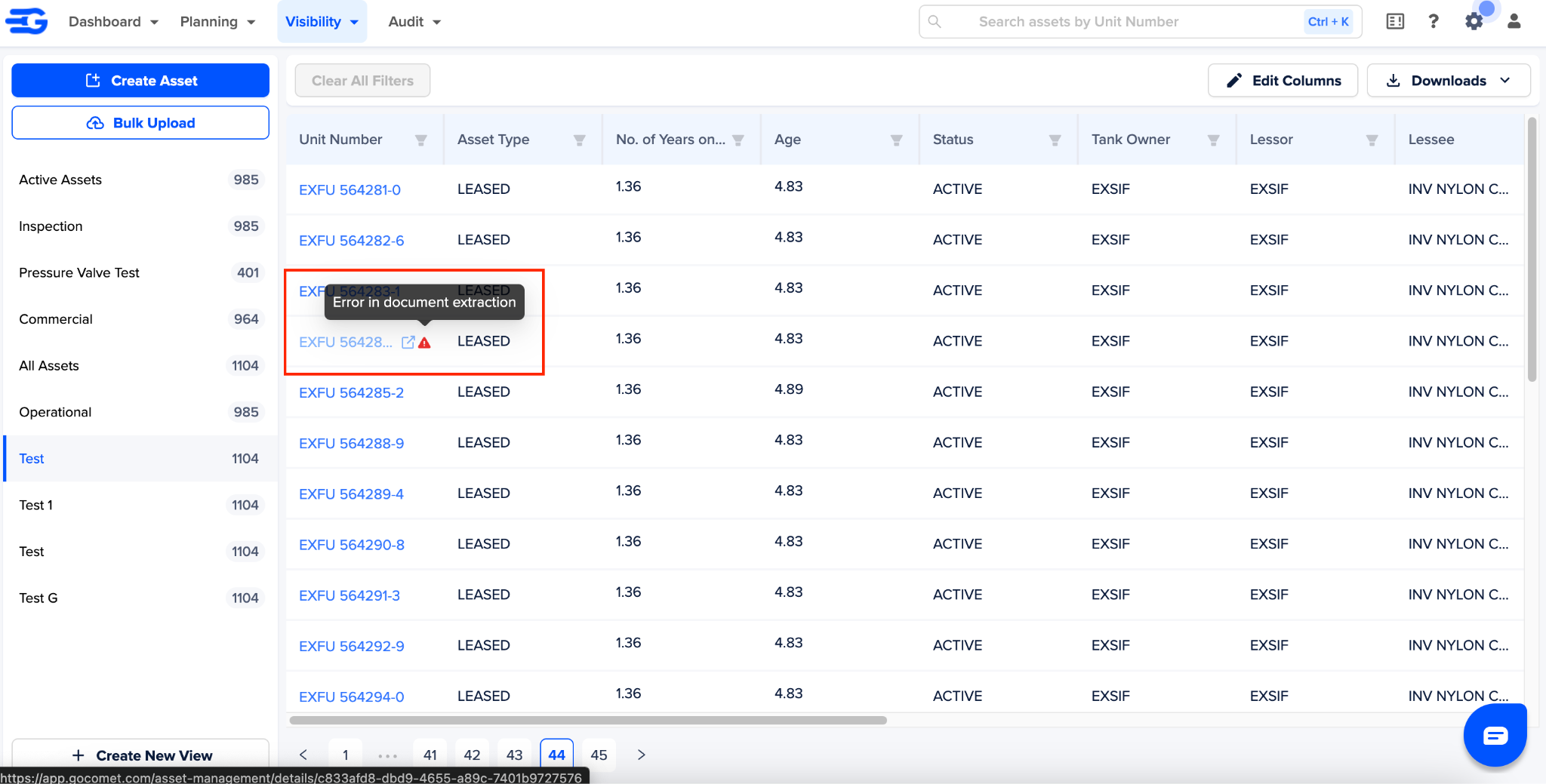
In table view, Unit number has an red alert icon next to it
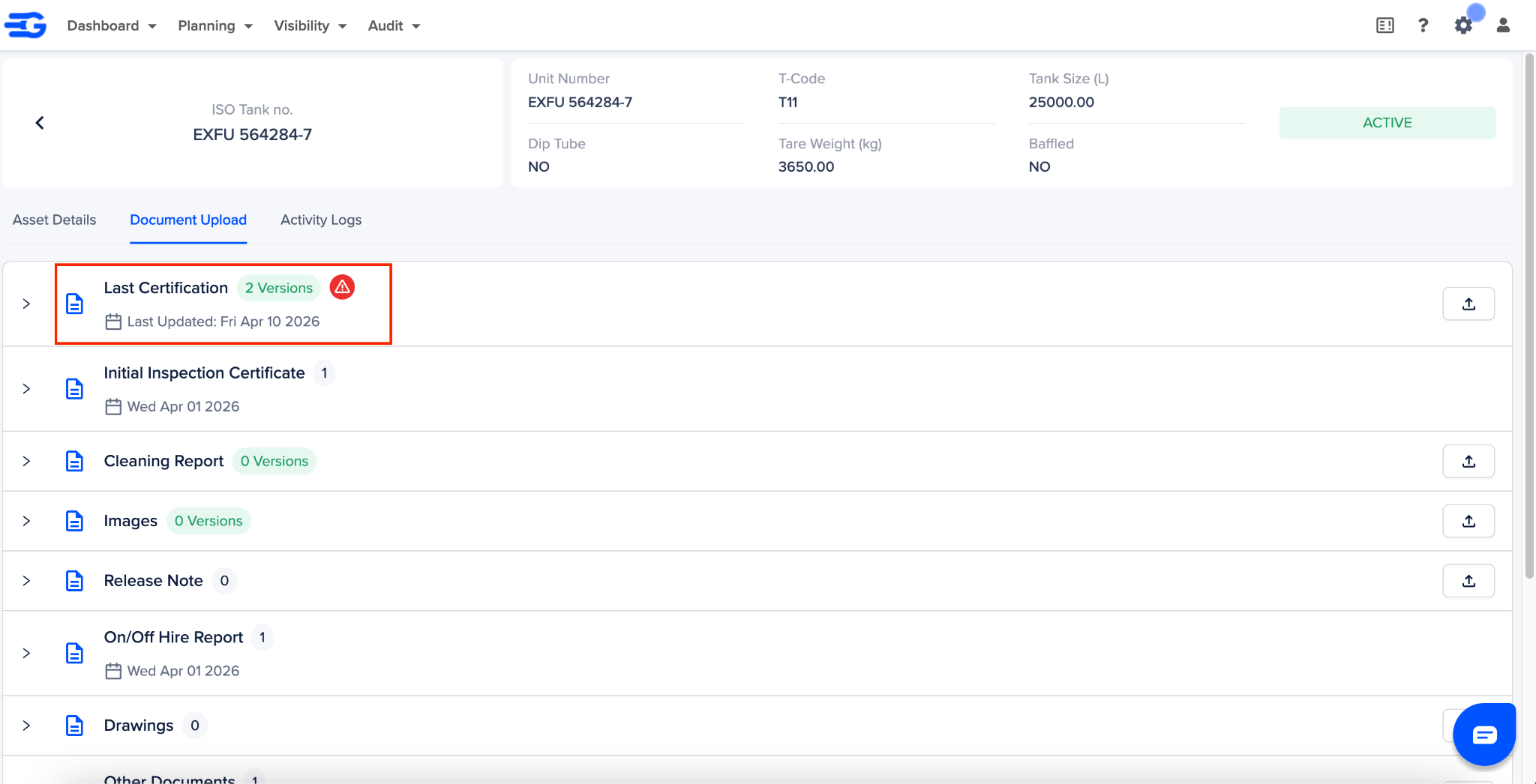
Document bucket also has the red alert icon
The “Document Reading (DR)” Next to the document also has a red dot
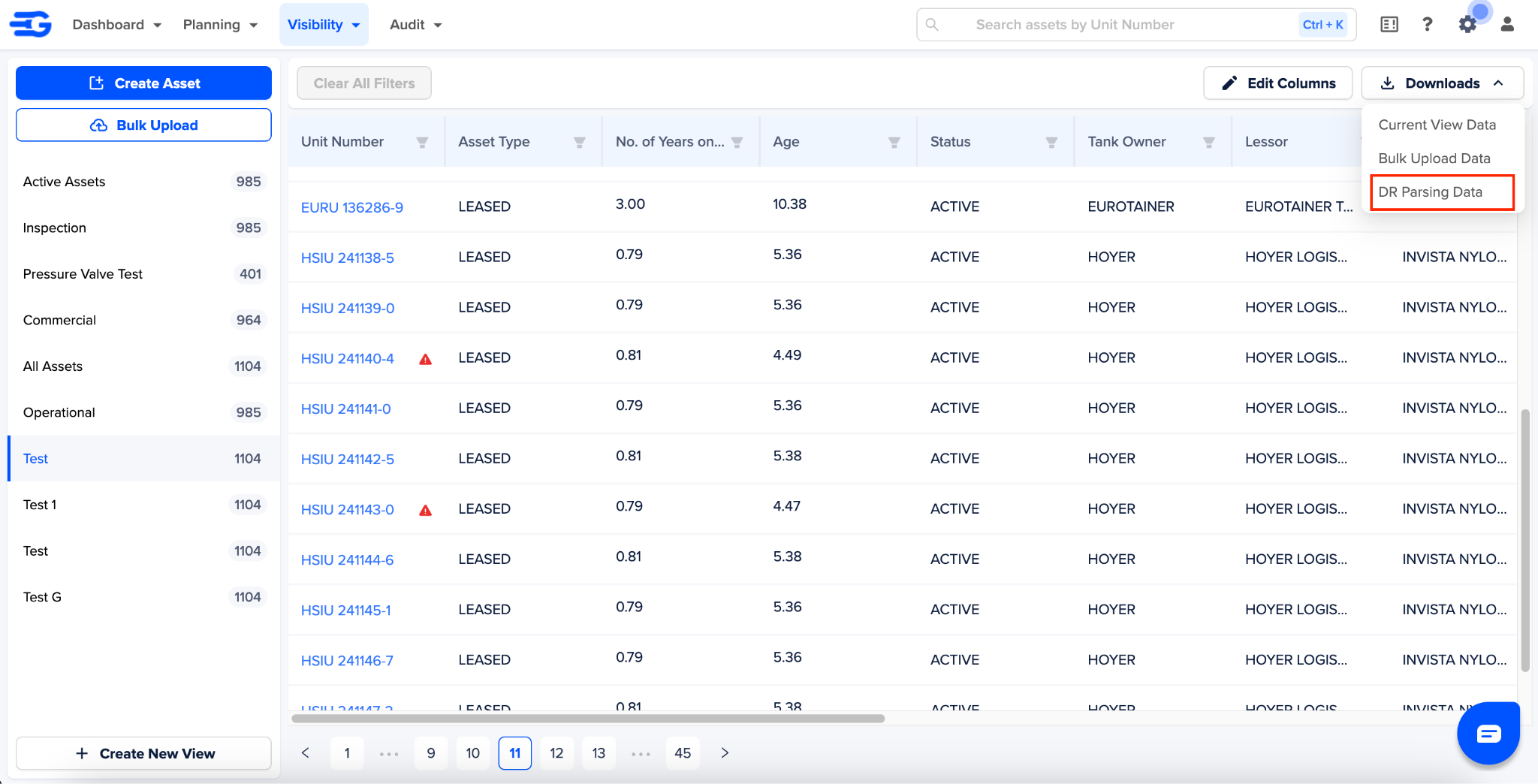
You can also download document reading error report from the platform. Simply go to the download feature and click on “DR Parsing Data”. This report will generate an email to you.
How to handle errors
You can manually update the fields in the document reading modal. To do this follow the below steps:
Click on the “Document Reading (DR)” icon
The in document reading modal, fields with errors will be highlighted in red
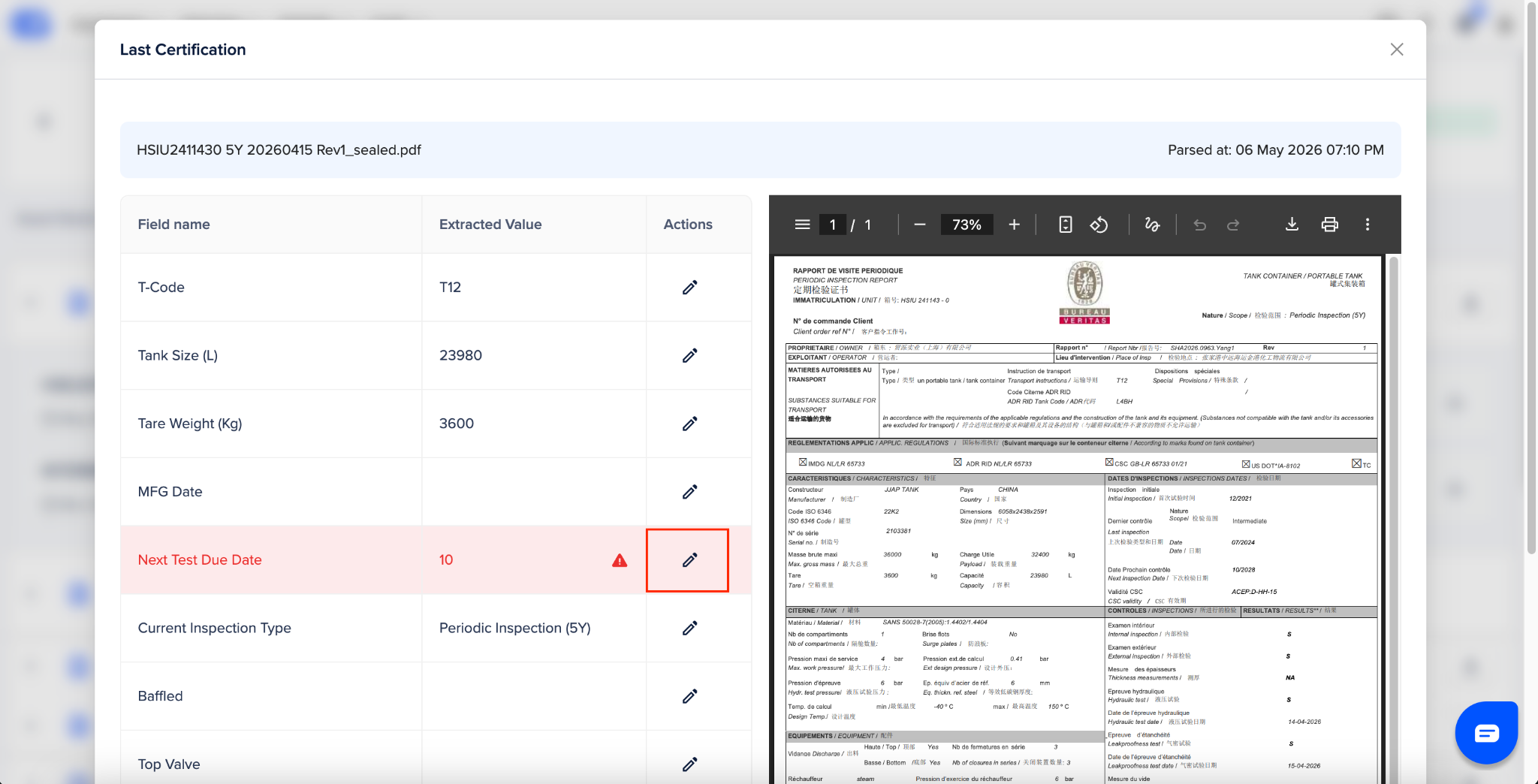
You can review the uploaded pdf and update it manually. To do this click on the “Edit” icon next to this field
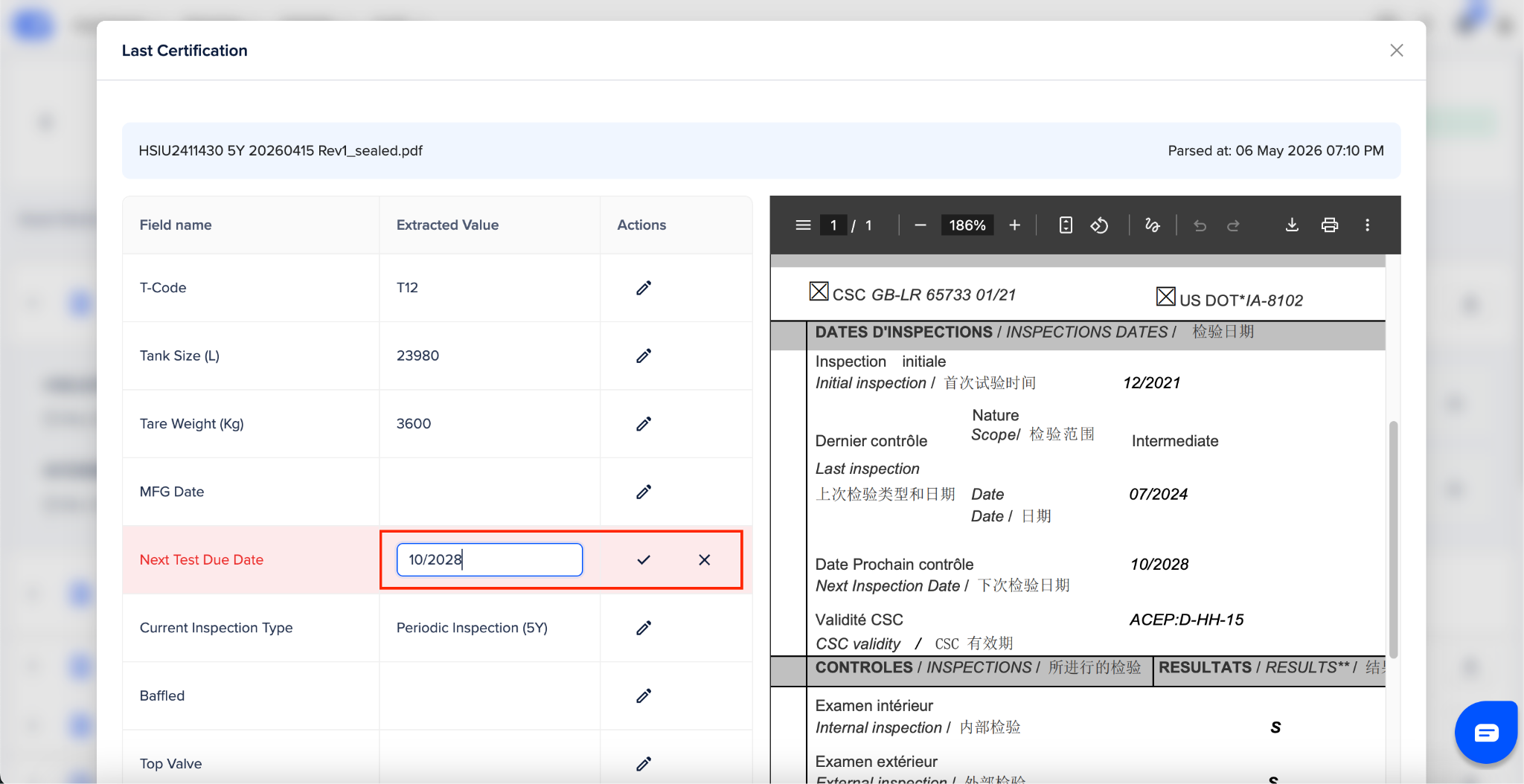
Now enter the value in the “Text box” and Click on “✔”
Scroll down and at the bottom of the modal click on “Save” button. This will update all the read fields for this asset.
Was this article helpful?
That’s Great!
Thank you for your feedback
Sorry! We couldn't be helpful
Thank you for your feedback
Feedback sent
We appreciate your effort and will try to fix the article