There are two ways to update asset field level information in the asset management module:
Via table view - Can be used for individual asset update
Via bulk upload method - Can be used to update multiple assets at the same time
Update asset via table view - To update asset data through frontend on GoComet follow these steps:
Locate the asset you want to update. You can either search the unit number
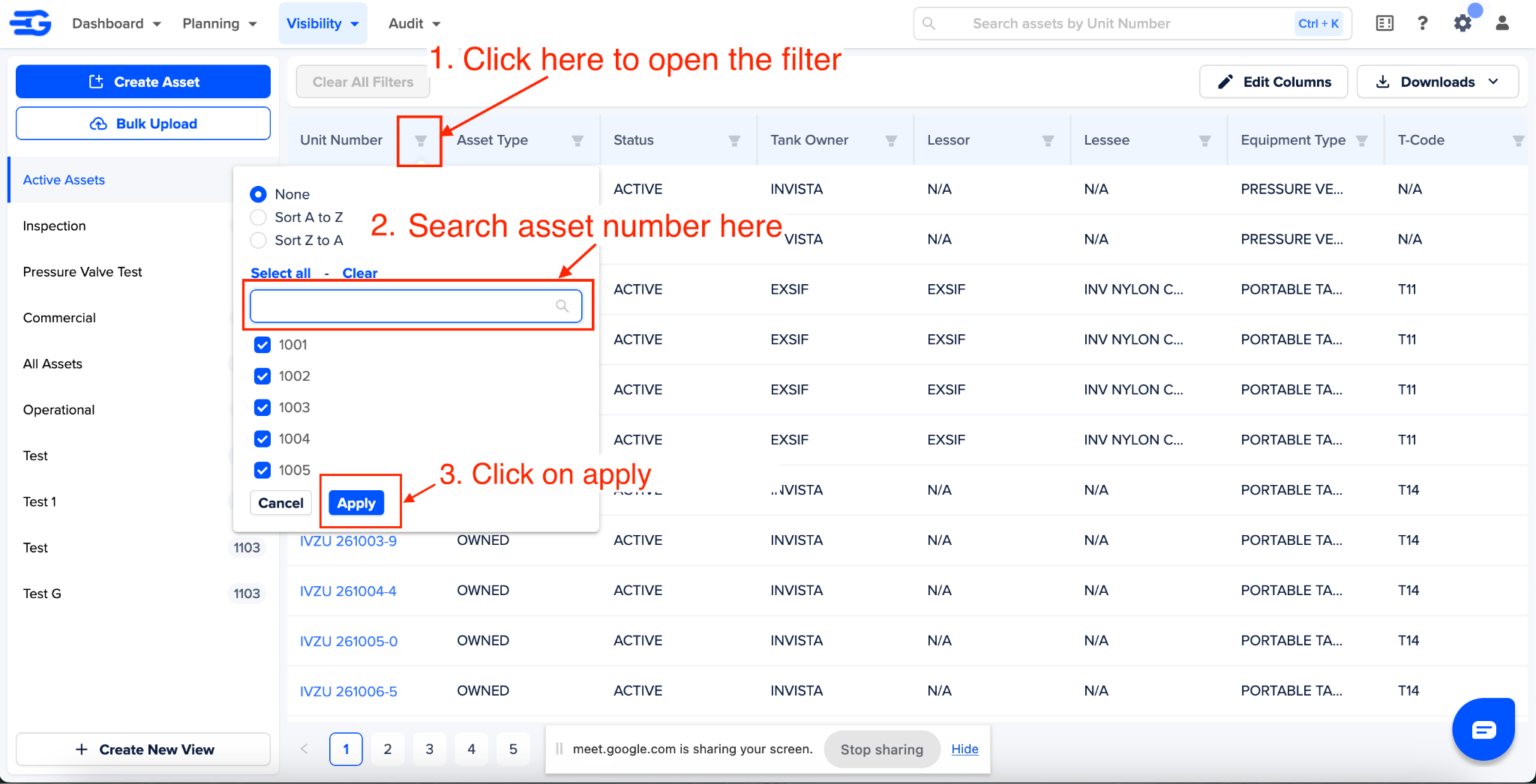
There are two ways to search unit number,
Search for unit number in the “Unit Number” column filter
Global filter in the nav bar
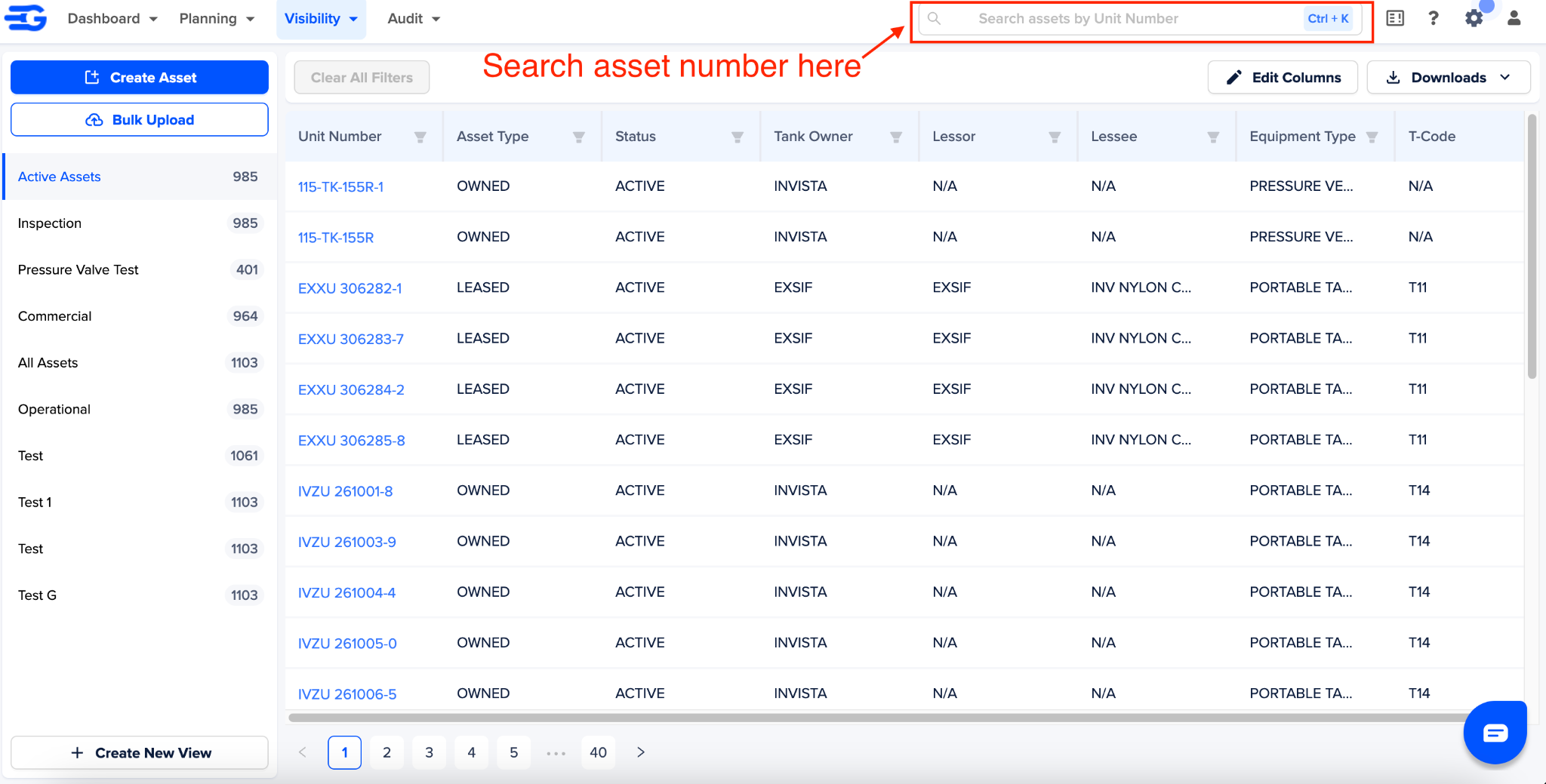
Note: In both the above cases - search is done in the selected view only. Advice to select the “All asset” view first and then search the asset in apply the filter
Locate the cell you want to update and click on the edit icon.
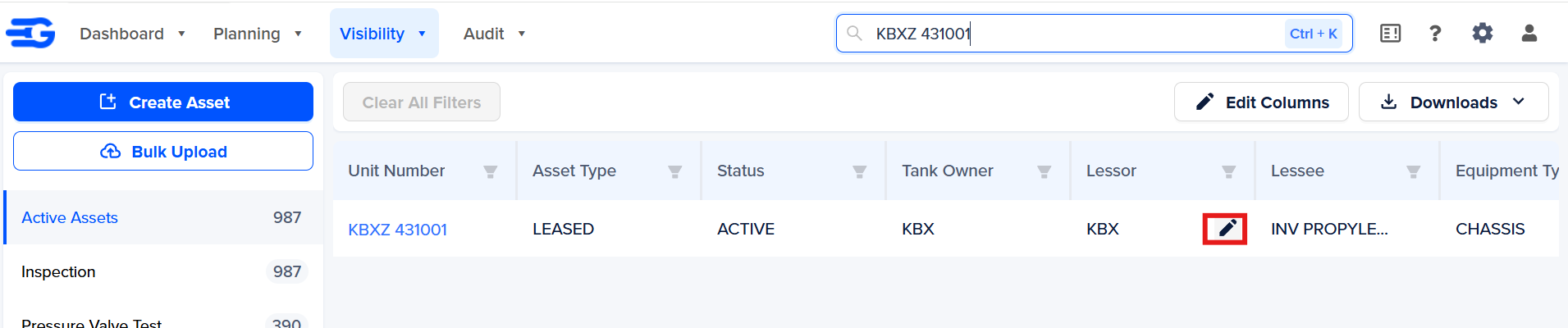
Update the field value. Depending on the field type you can enter the new value:
Dropdown field - you will get a list of pre-defined values
Date field - you’ll get the option to select date
Number/alpha-numeric field - you can type the new value
Whatever changes you make will be visible in the activity logs of that asset.
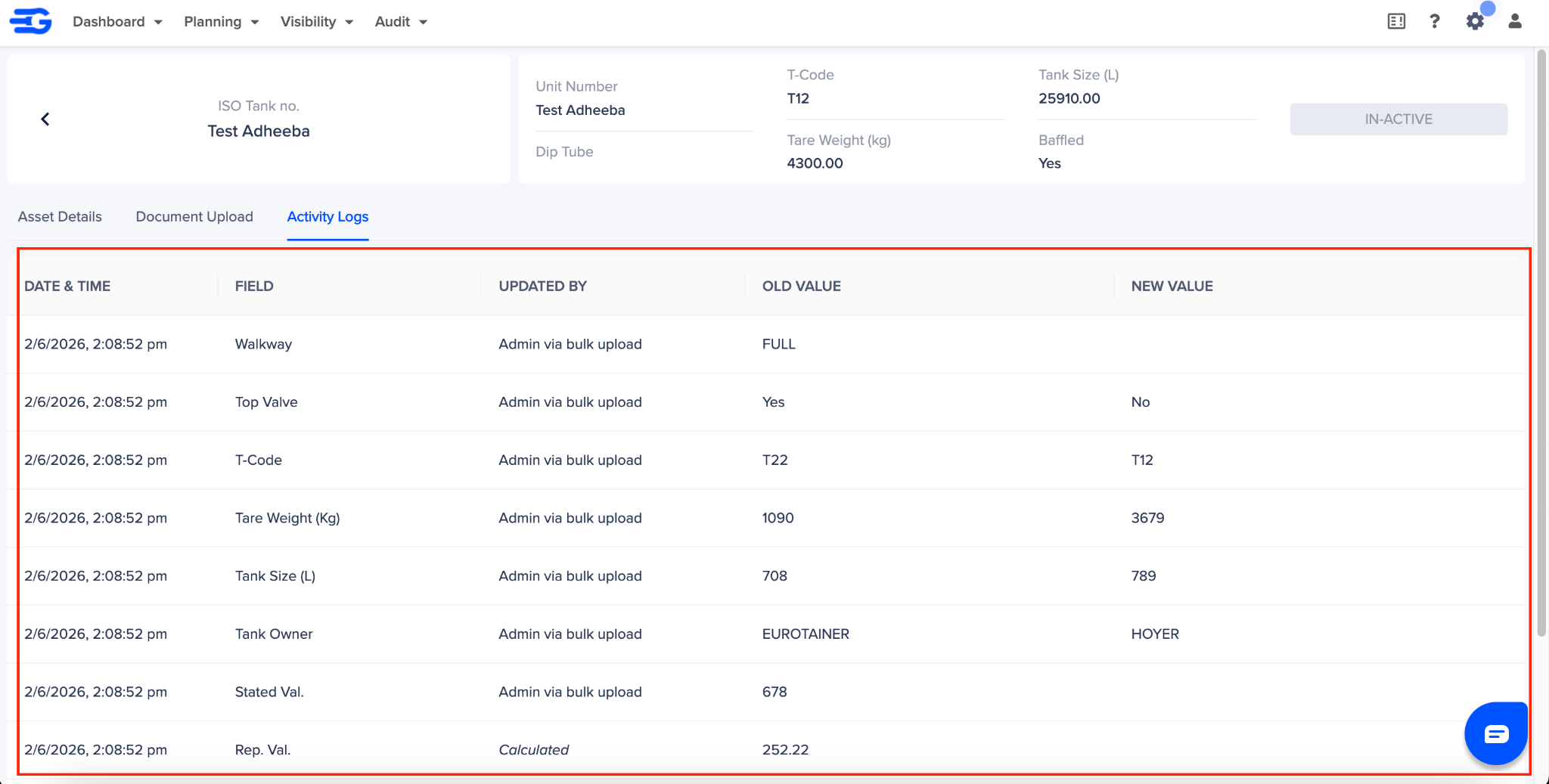
Note: To access activity logs of an asset, click on its unit number in the table view, and then activity logs table in the asset detail page.
Update asset via bulk upload method
In the asset management module go to “Download” button and Click on “Bulk Upload Data”
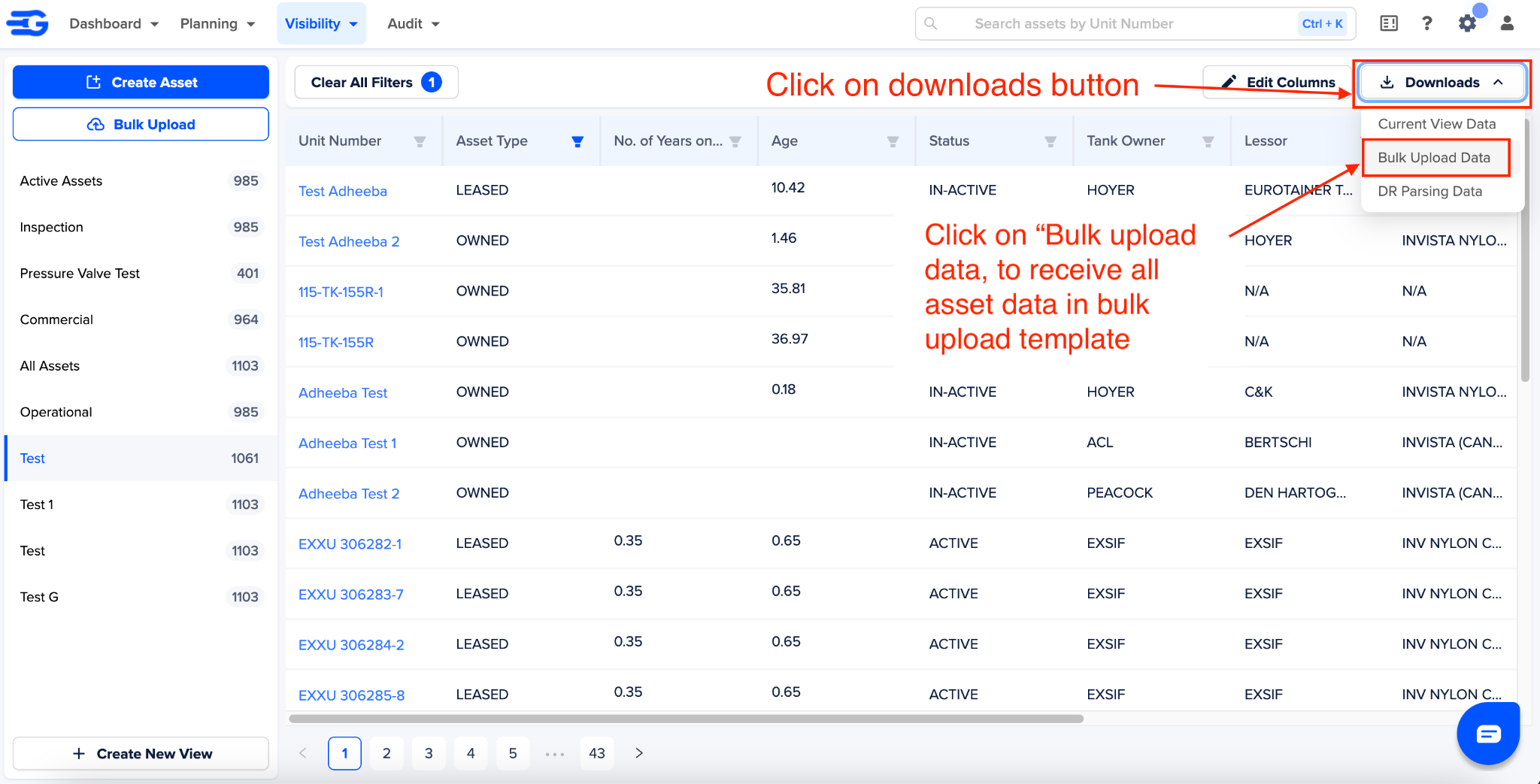
All asset data in the bulk upload template will be emailed to you.
Note: This can take up to 10 minutes, as the data has to be prepared and emailed
Once you receive this data, follow these guidelines
In your excel only keep assets you want to update
Updated values, where applicable
You can update multiple assets and fields at the same time
Format of the fields should be followed:
Dates fields - Should always be in DD/MM/YYYY format
Dropdown fields - Use values that are allowed on the platform frontend only. Any deviation will give an error and prevent update
Numeric fields - Can be upto 2 decial values only
Alpha-Numeric - You can add any value here
Save the file once the changes are done
Do not
Make any changes in the excel columns
Change document format
Add any extra sheet(s) in the excel workbook apart from what you want to upload.
Once you are satisfied with the updated data in the template, go to asset management module and click on “Bulk upload” button.
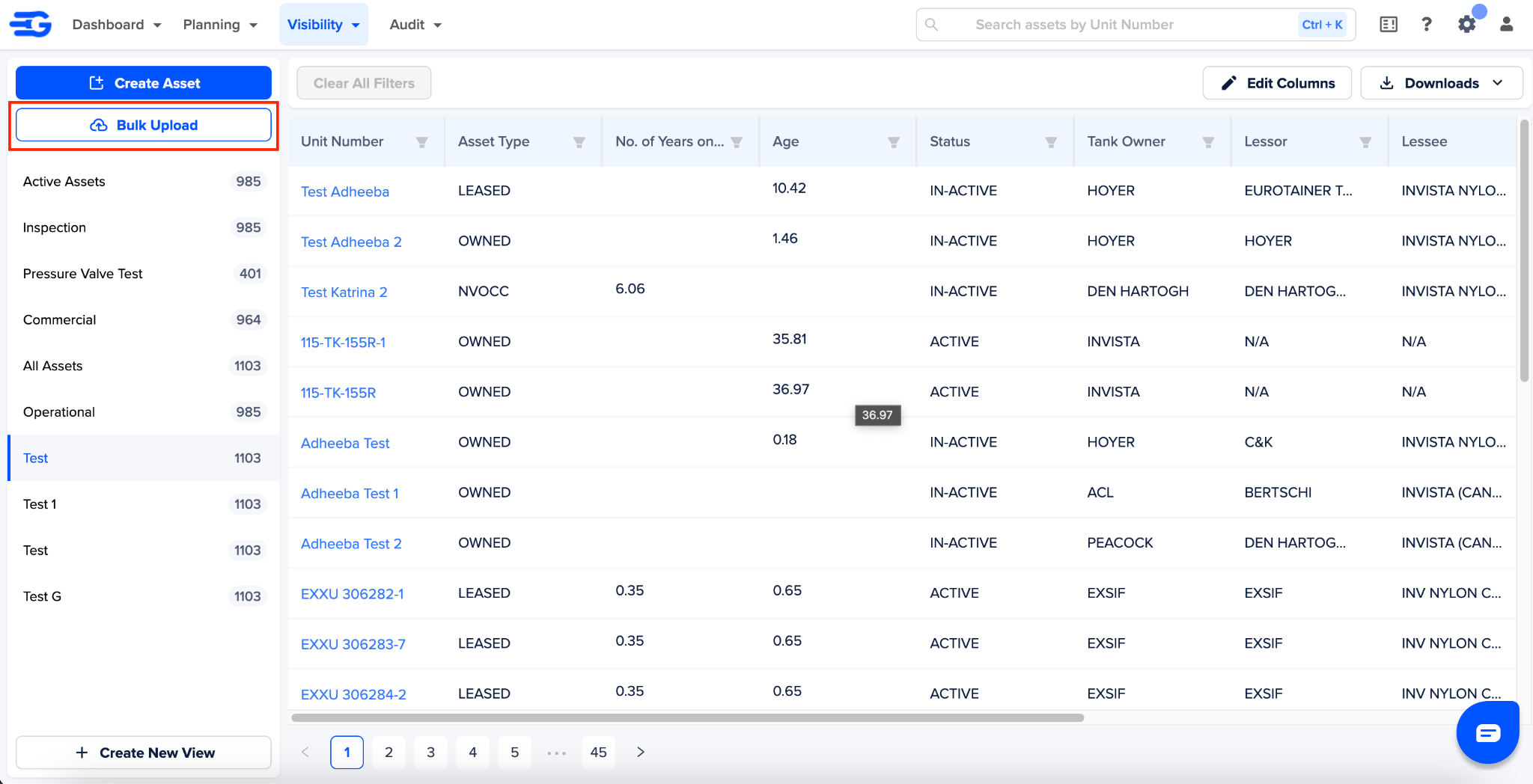
This will open a modal. Click on the “Click to re-upload” button and upload the document.
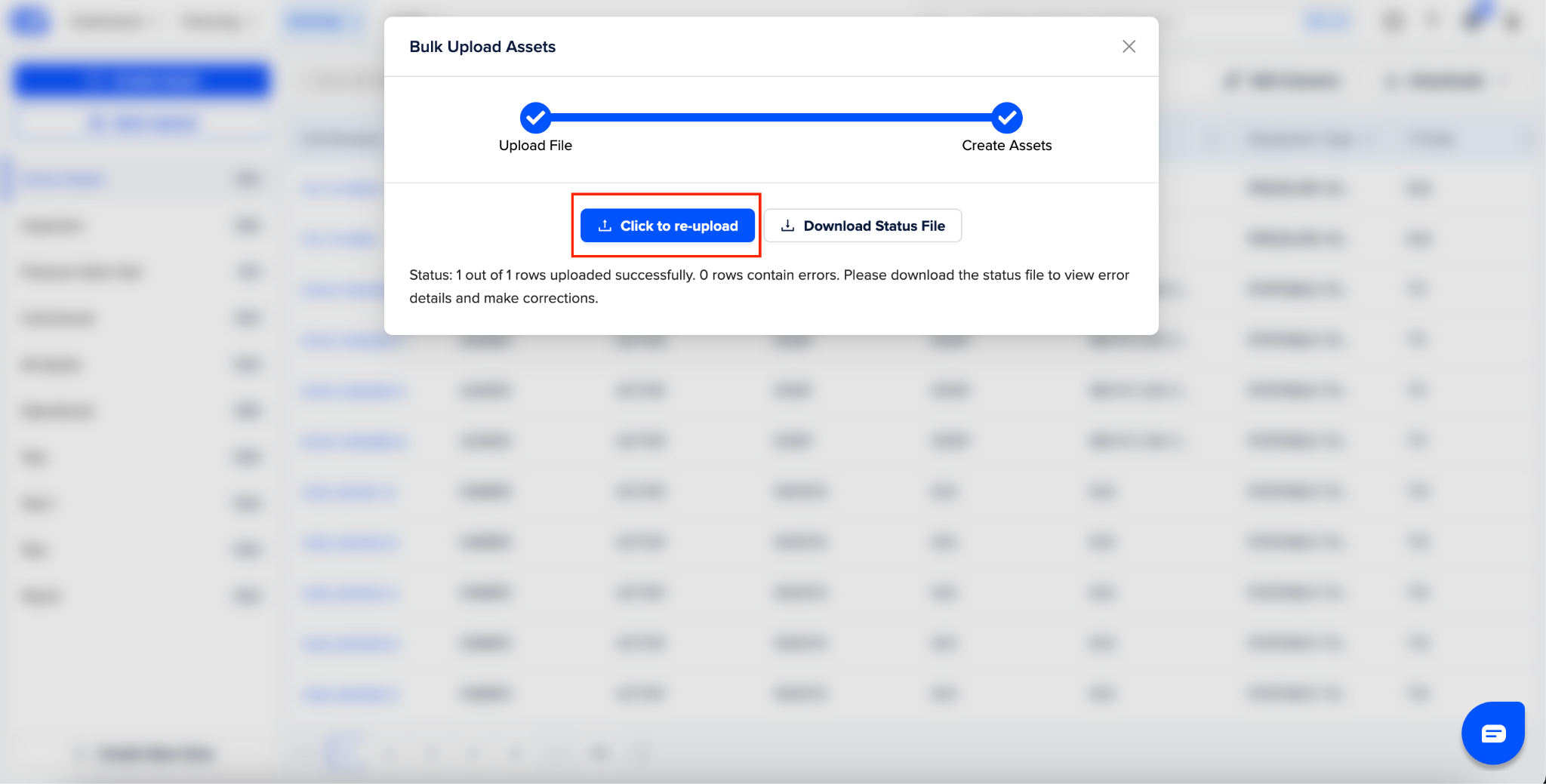
Once uploaded, review the status in this modal to understand if your assets have been successfully uploaded.
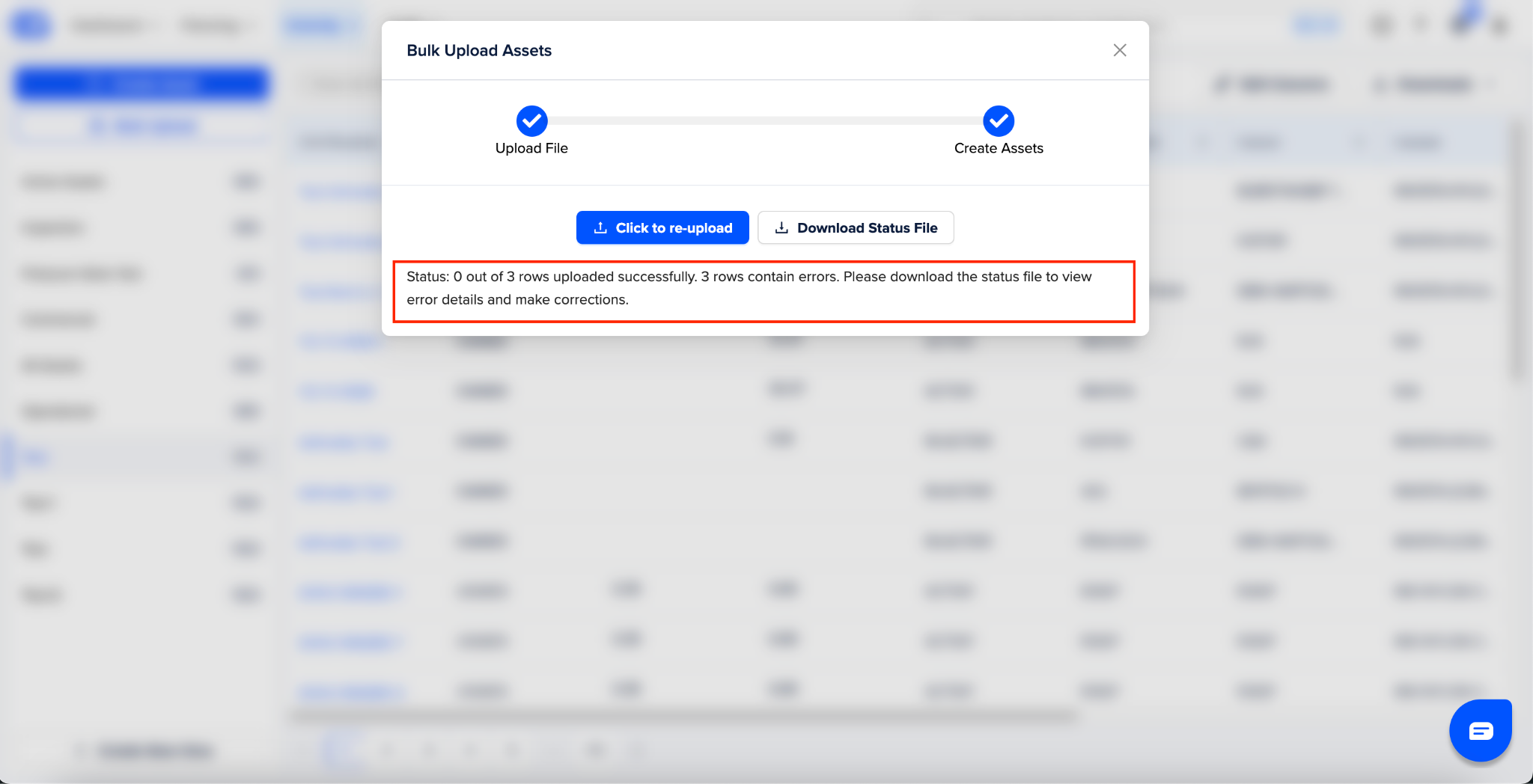
This status will help you identify if any of your assets have failed from being updated. To get the asset numbers and error details, click on the “Download Status File” button.
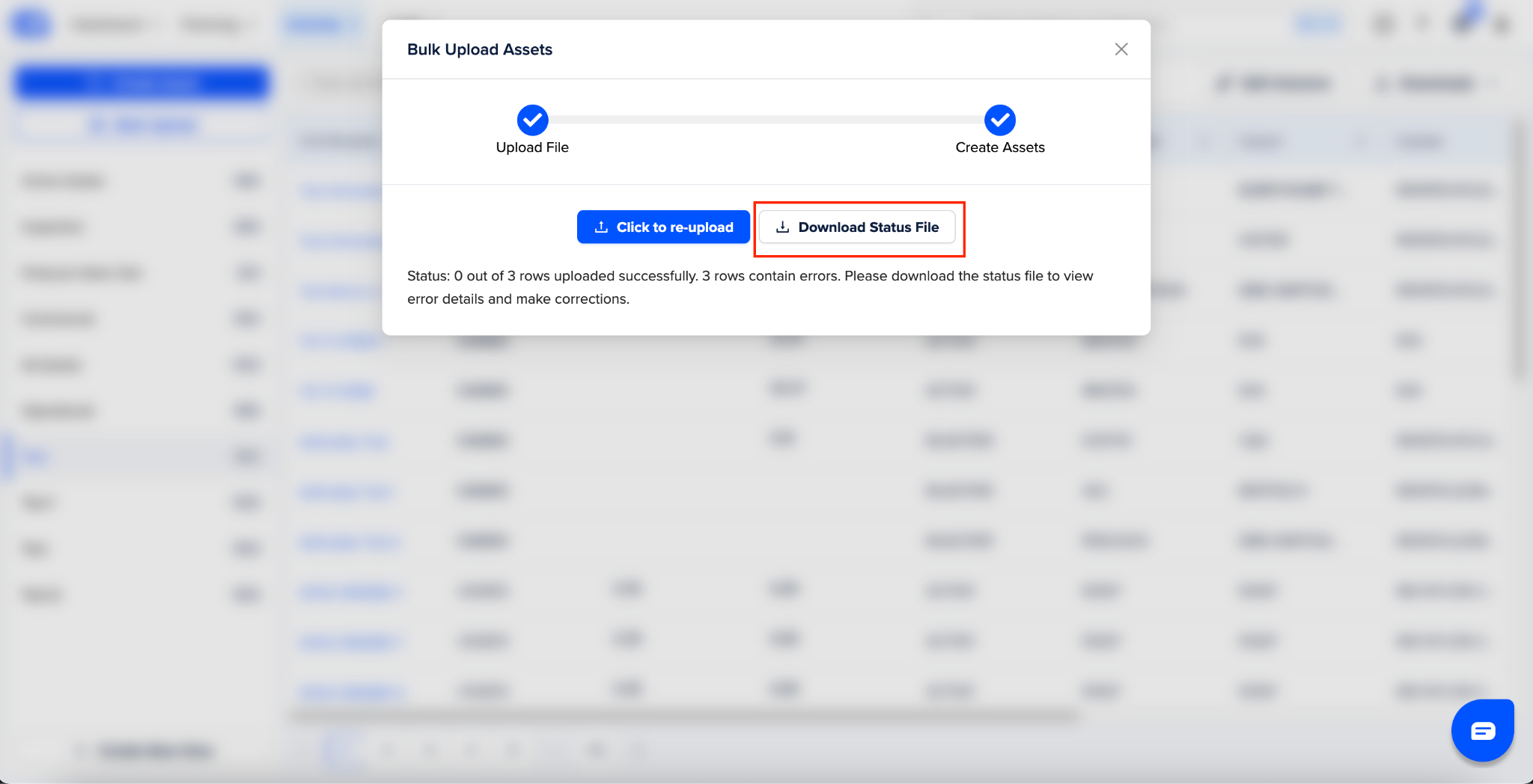
The status file is received in CSV format, and can be converted into excel. When converting use “|” as the delimiter.
Was this article helpful?
That’s Great!
Thank you for your feedback
Sorry! We couldn't be helpful
Thank you for your feedback
Feedback sent
We appreciate your effort and will try to fix the article