How to add new users on GoComet under “Asset Management” module
There are two ways to add users in a team on GoComet:
Add existing users - These users are already present in another team in your GoComet account
Invite new users - These users are not present in any other team in your GoComet account and need to be invited
Add existing users
Follow these steps:
Login to your GoComet account
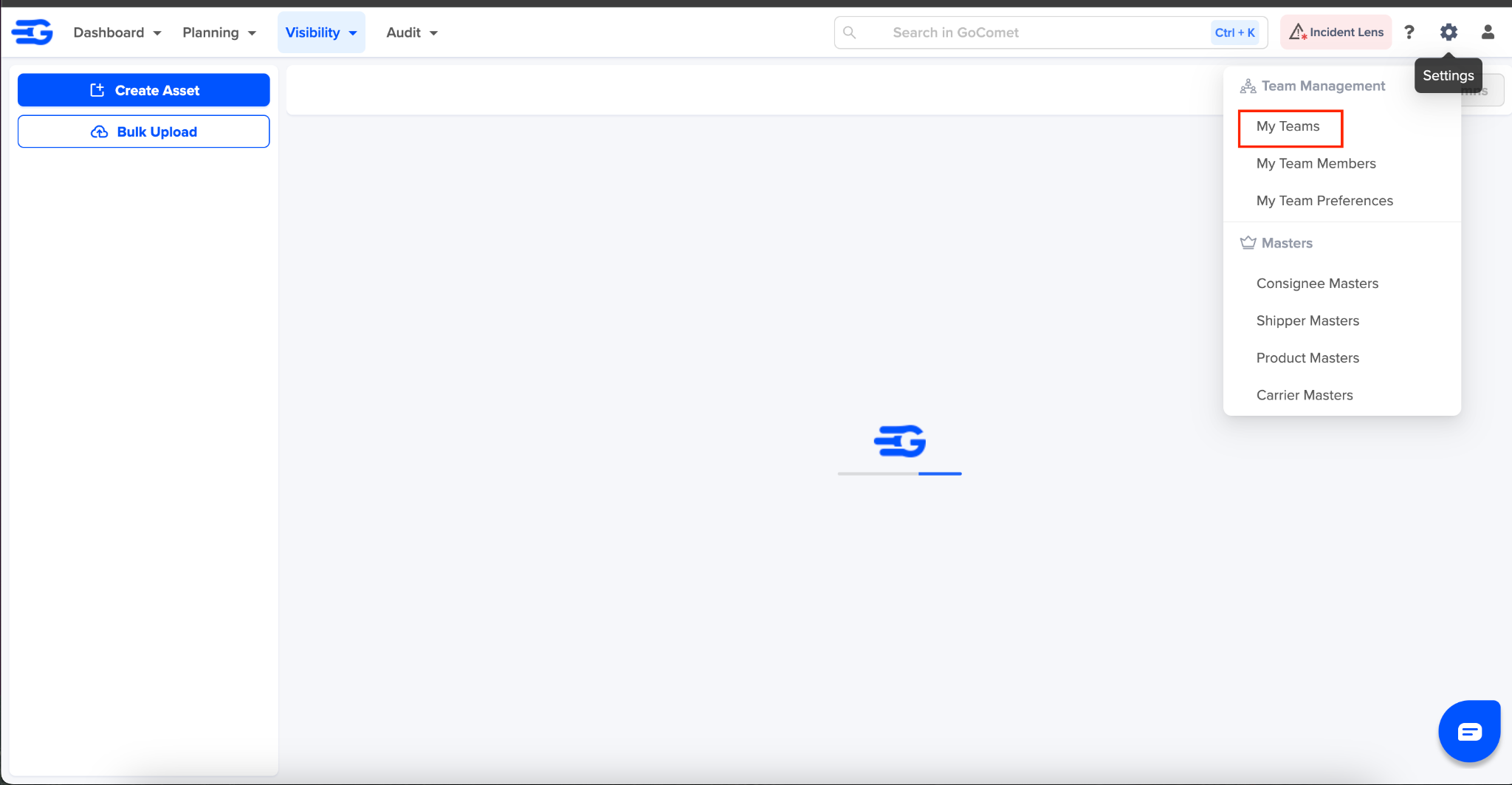
Click on the settings icon and then on “My Teams”
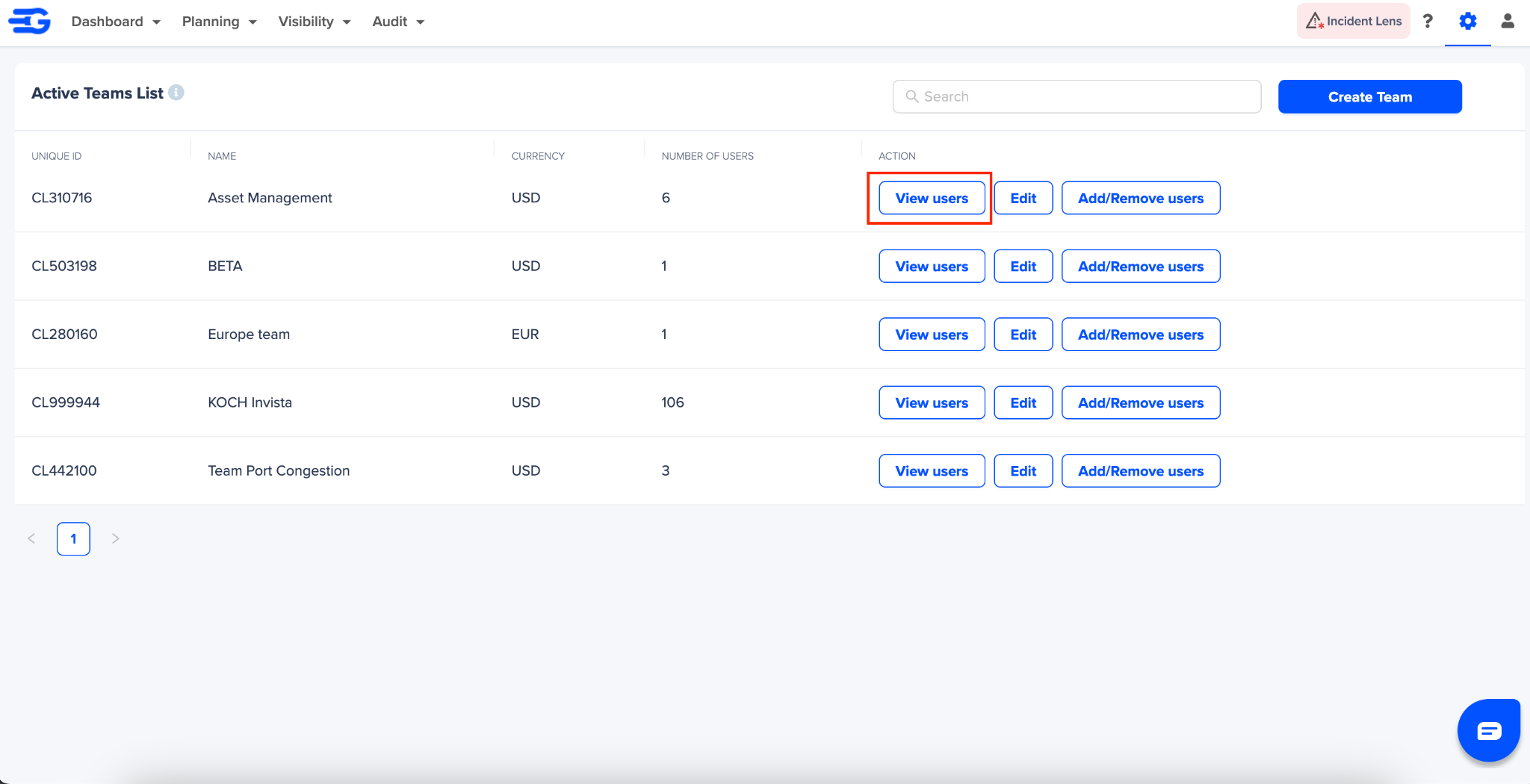
Locate “Asset Management” team and click on “View Users” button
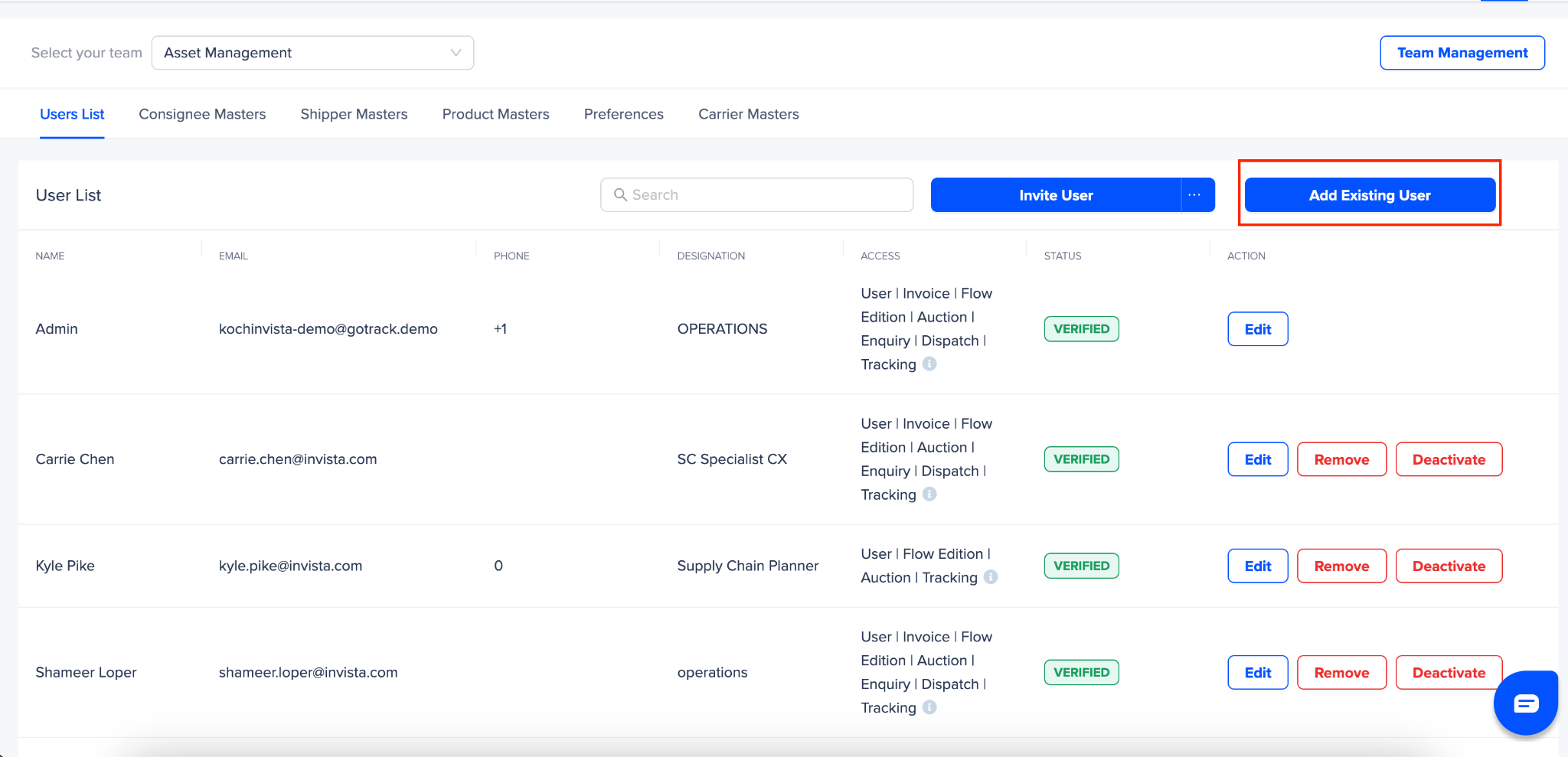
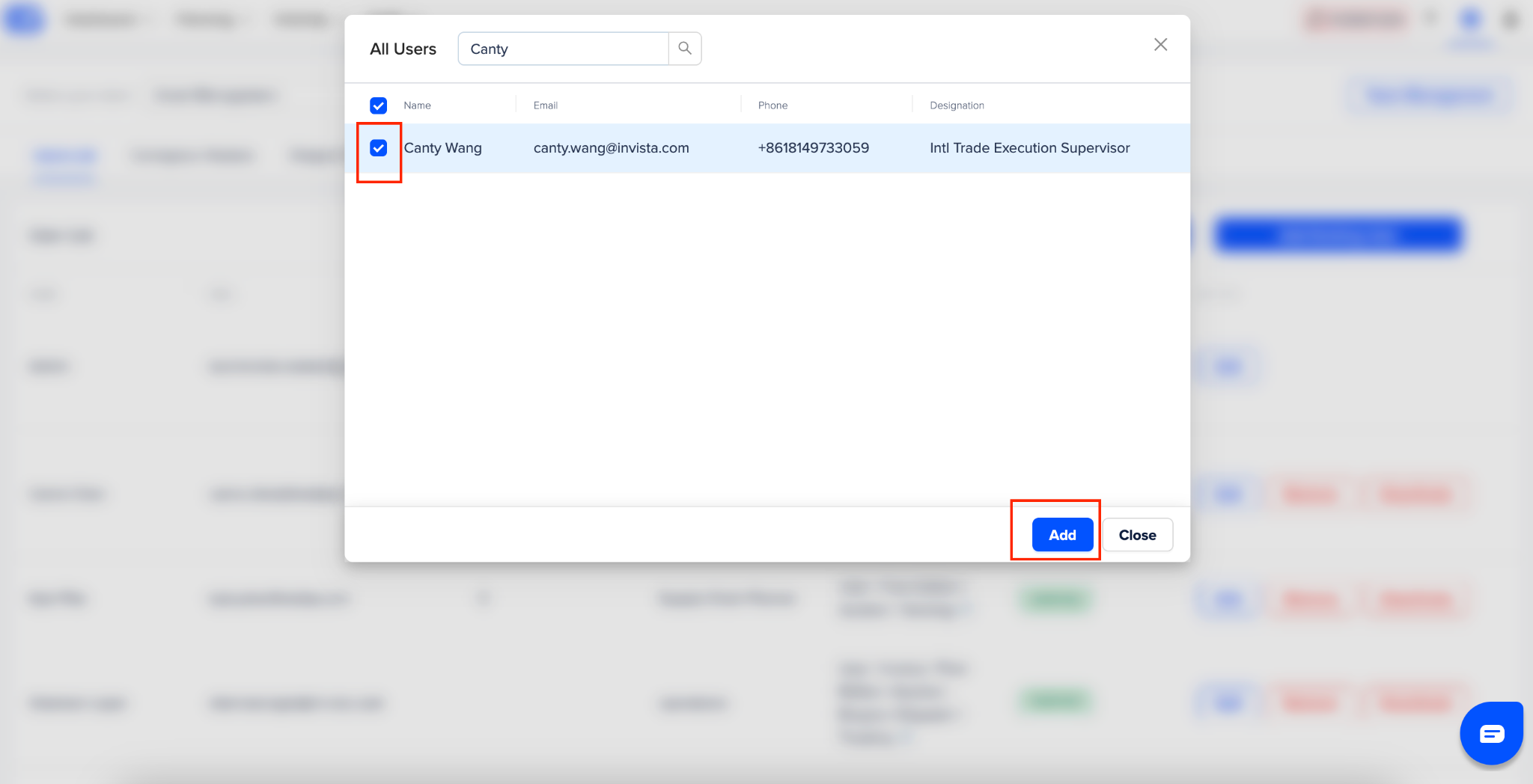
To add users already on GoComet in existing team - Click on “Add Existing User”
Search for their name
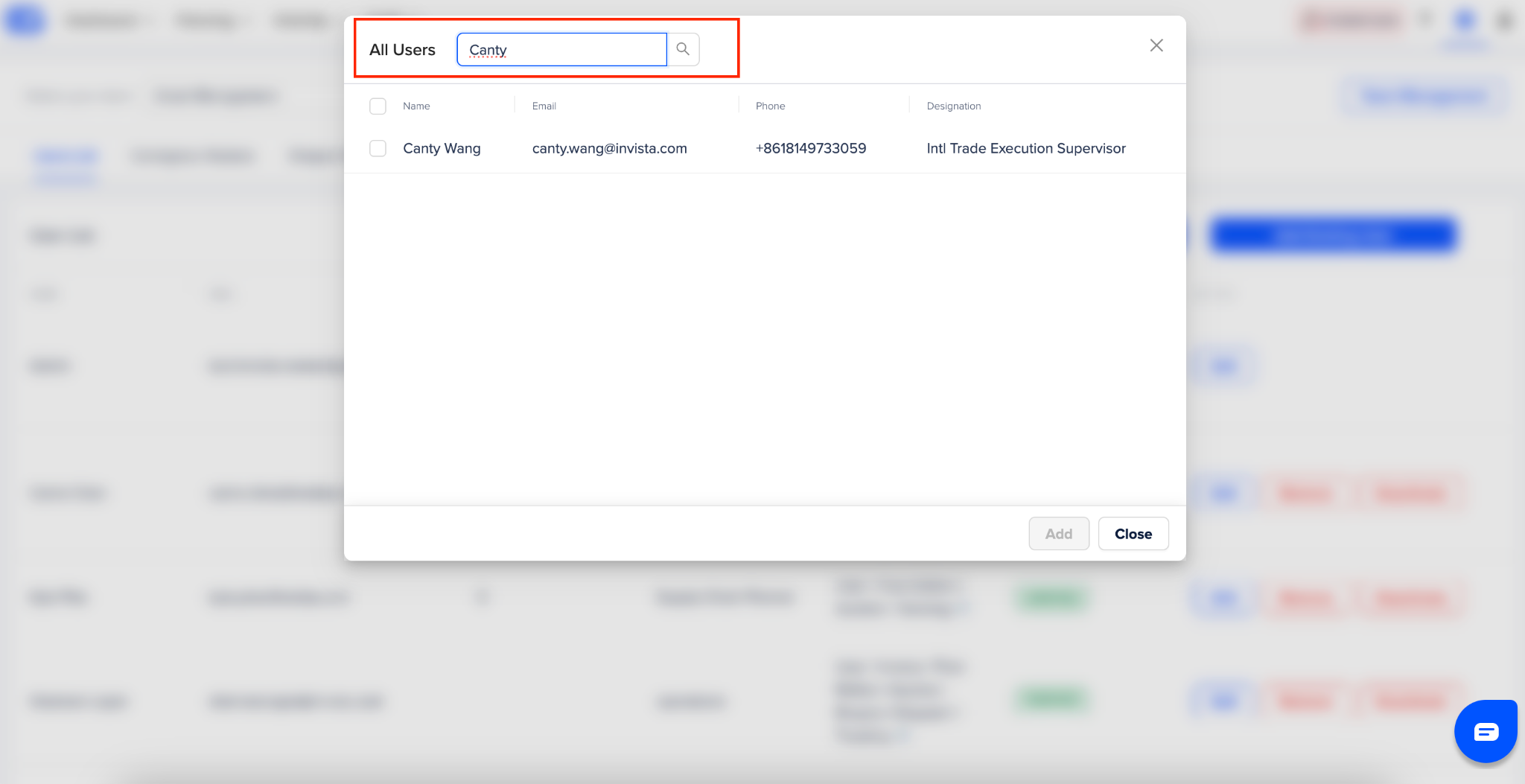
Select the user and click on “Add” button
Invite new users
To add an entirely new user you can invite them. For this follow these steps:
Follow steps 1, 2, and 3 under “Add existing users” section
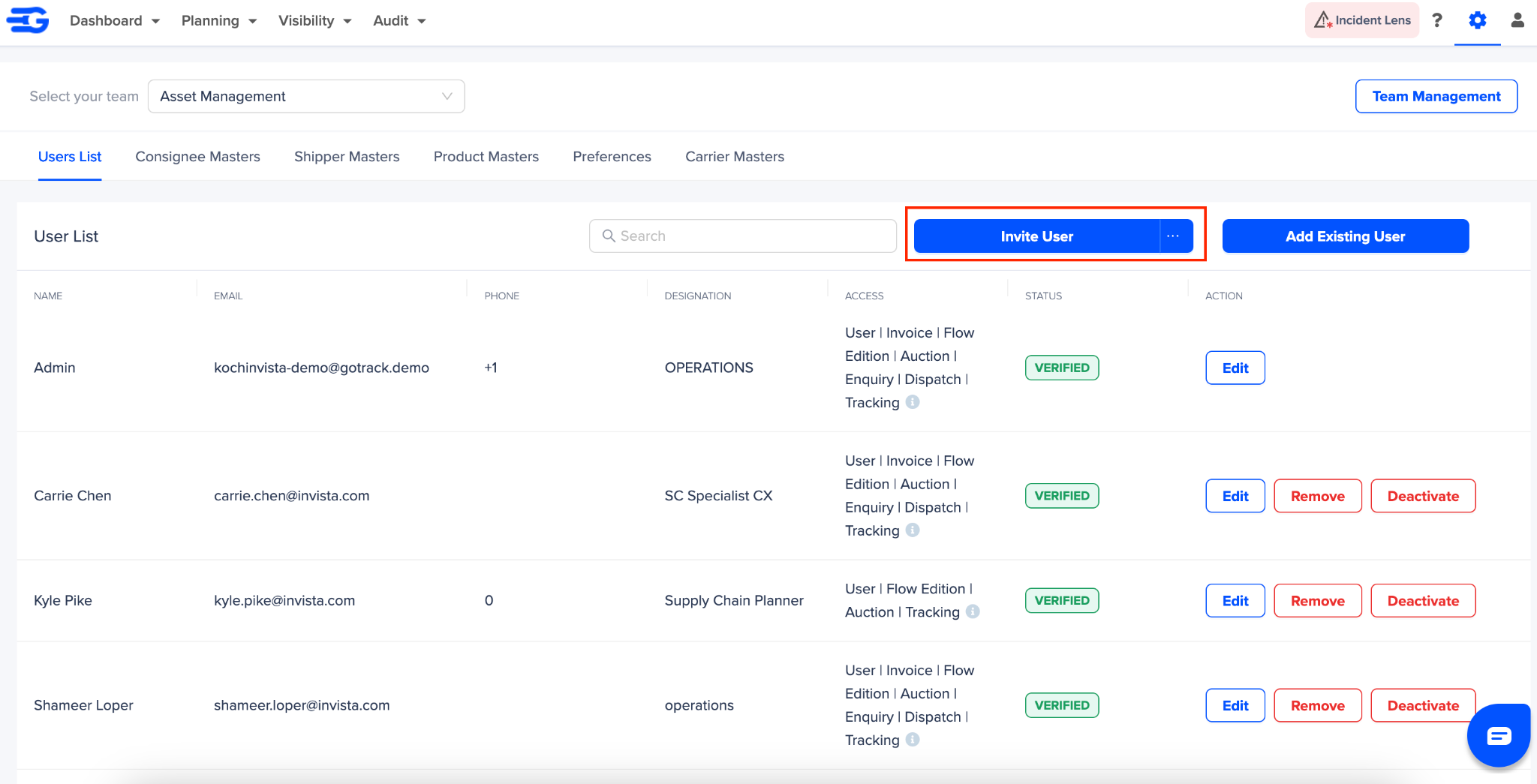
Click on "Invite User” button
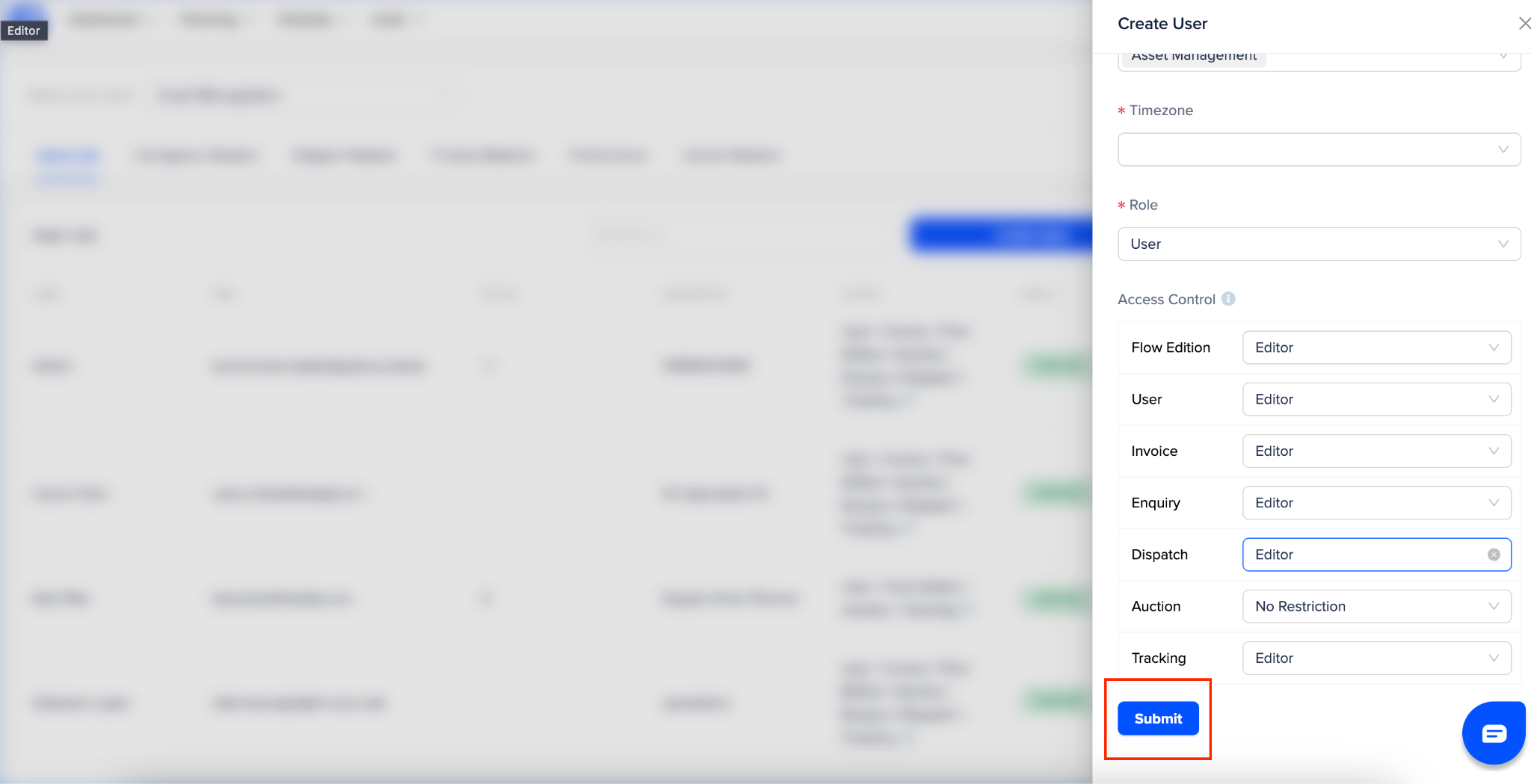
Provide all mandatory details like - User name, Email address, Designation, Timezone
And click on “Submit
This user will then receive an invitation email from GoComet with a link. User can use this link to set up their password and activate their GoComet account
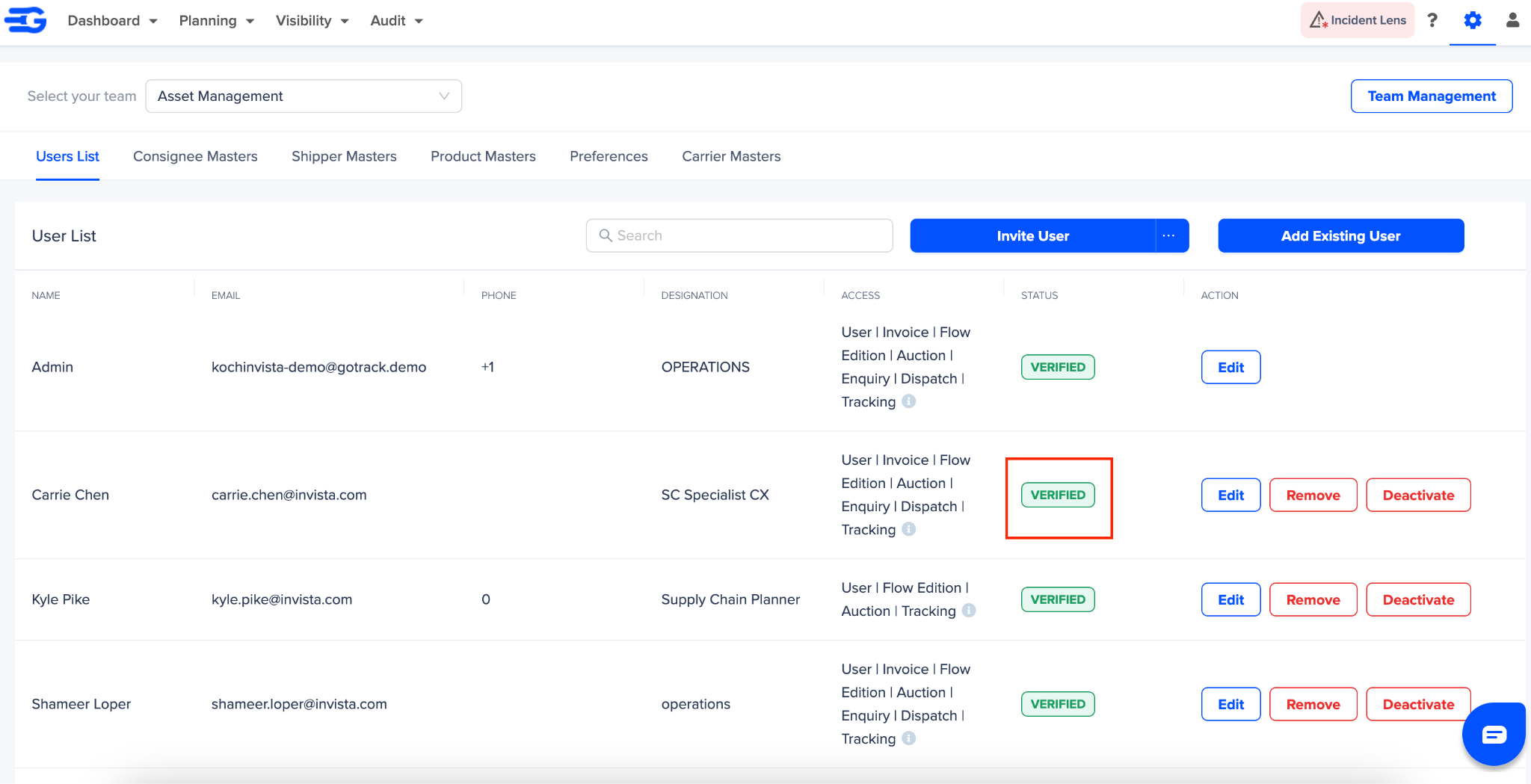
This user will get added in the team, and once they activate their GoComet account they status will appear as “Verified”
Was this article helpful?
That’s Great!
Thank you for your feedback
Sorry! We couldn't be helpful
Thank you for your feedback
Feedback sent
We appreciate your effort and will try to fix the article