What are views:
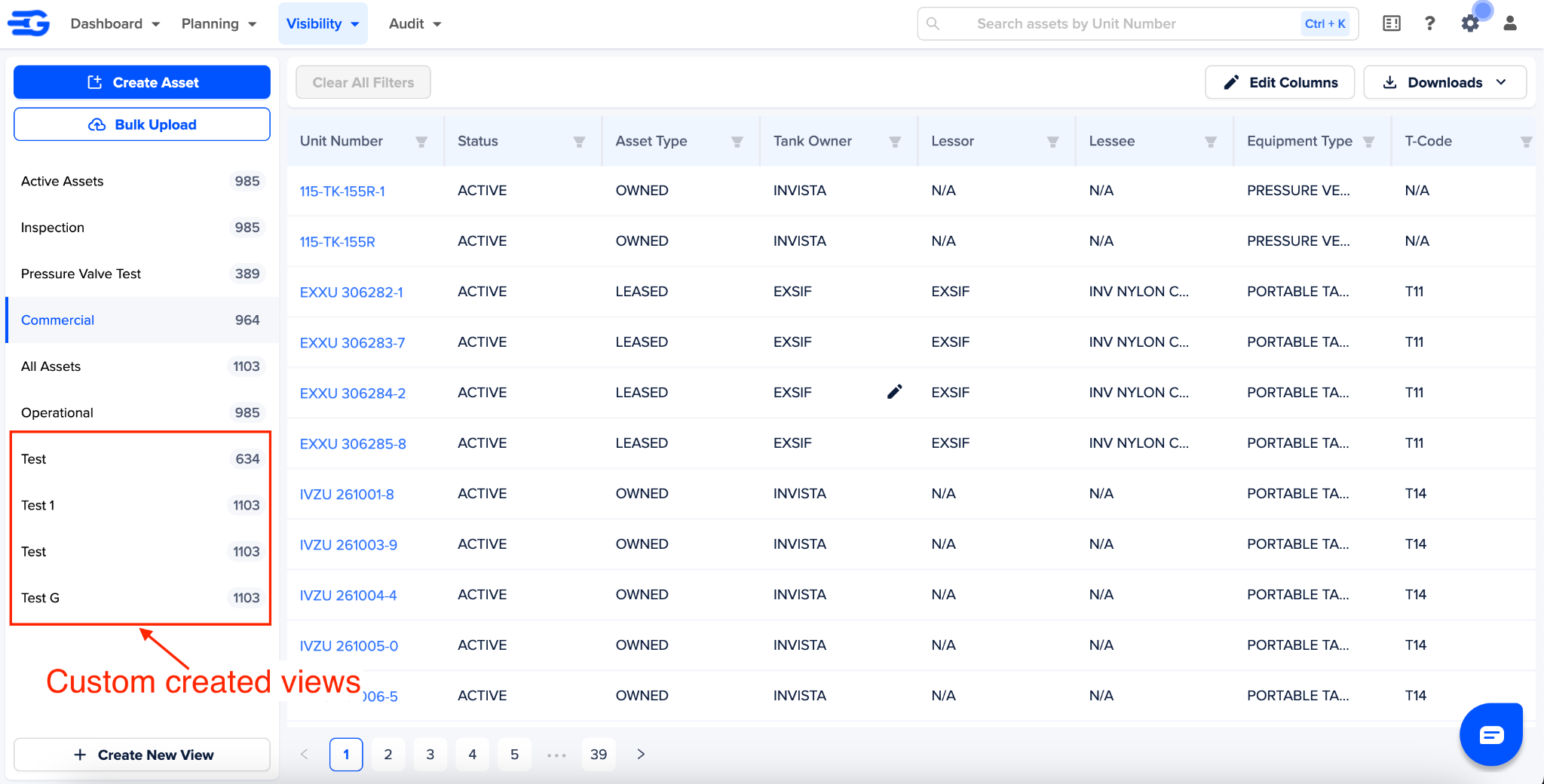
Your asset data in the asset management module is saved under table views. In the left column you can see all the views in your account, and on the right is the the asset data present under this view
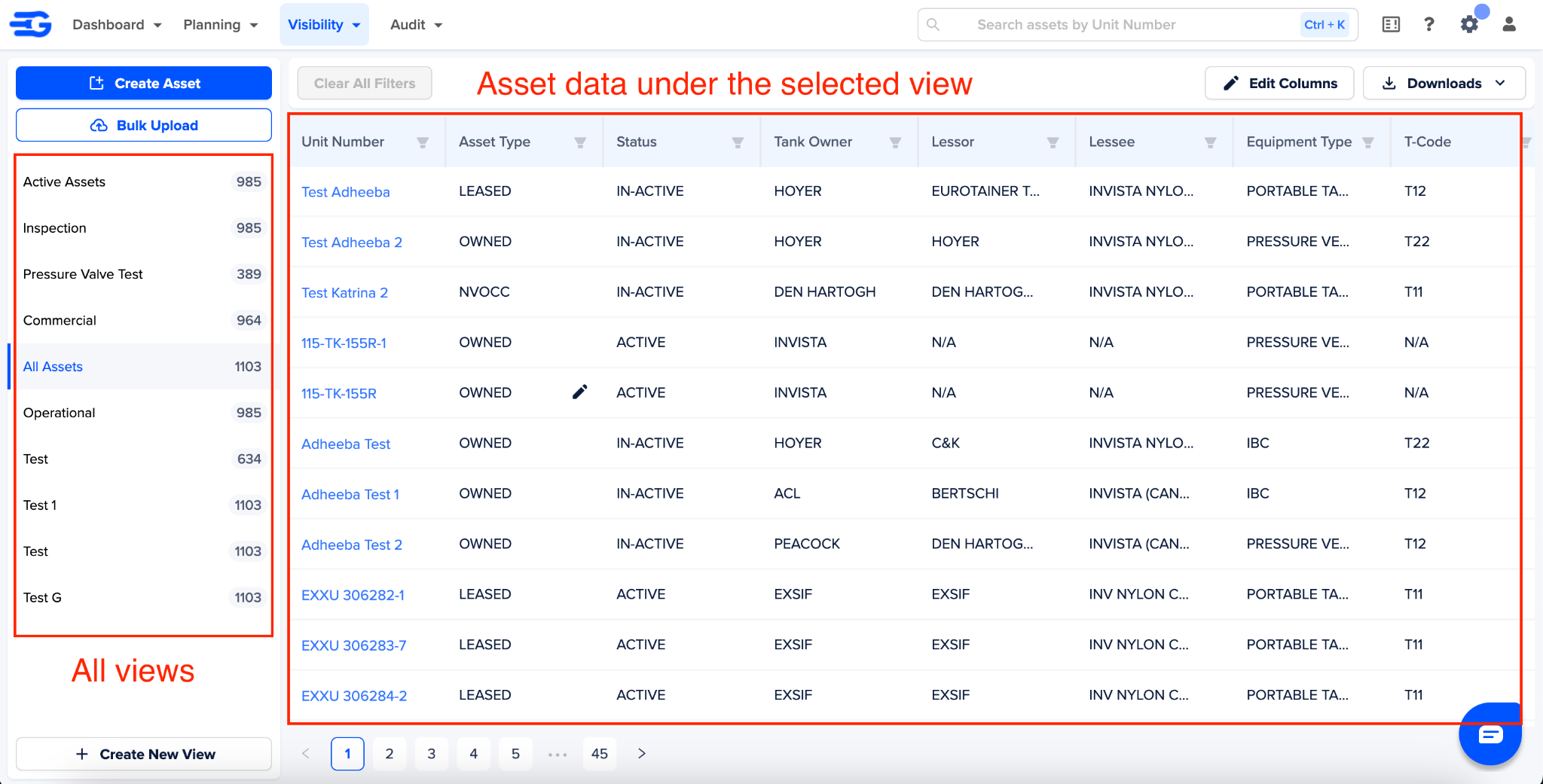
Types of views
There are 2 types of views:
Default views - These are pre-created default views common for all Invista asset management users
Custom views - These are the views that you can create for yourself, and are only visible to you.
Understanding default views - Six default views are created for all users.
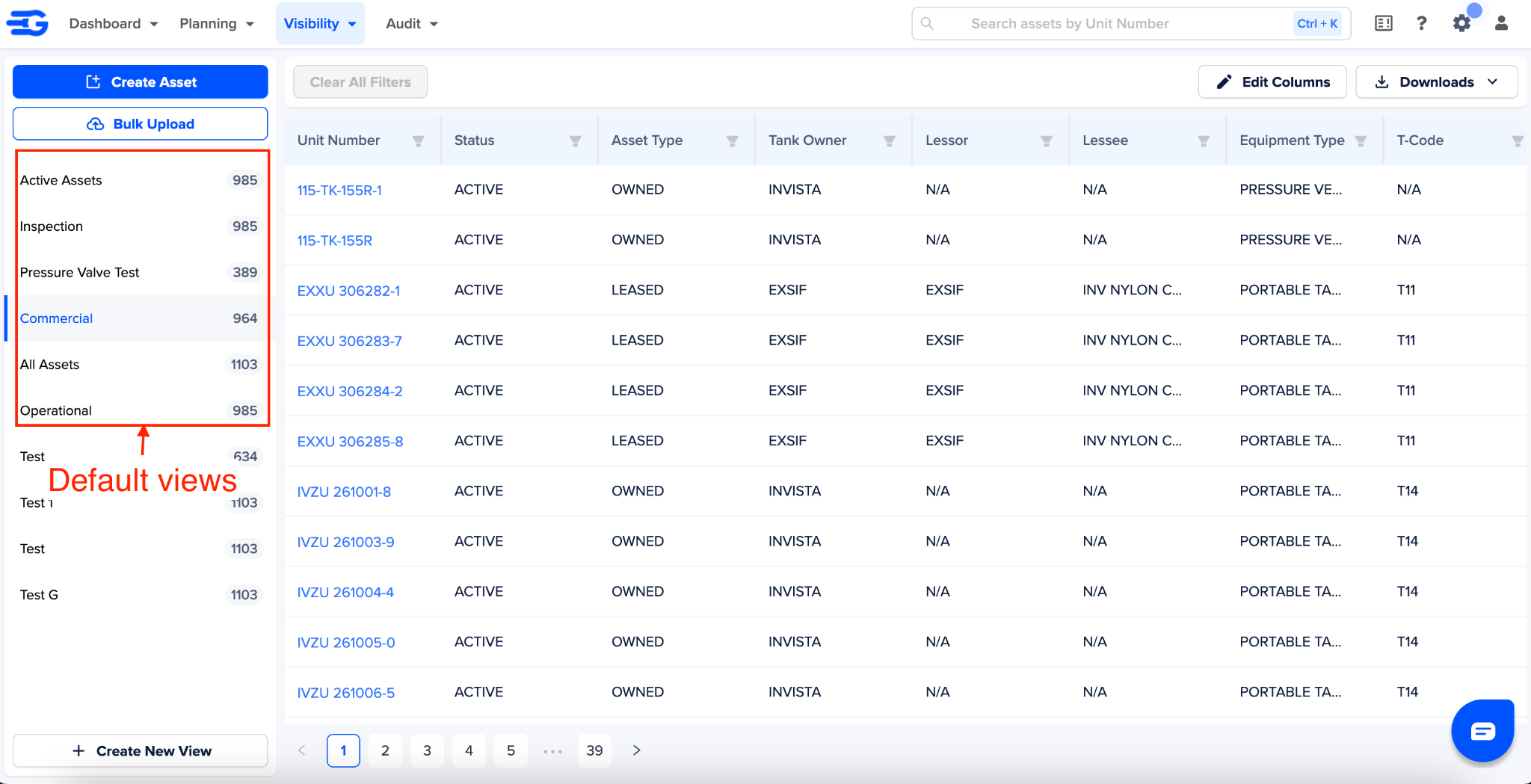
Refer this table to understand the default filters and columns under these views:
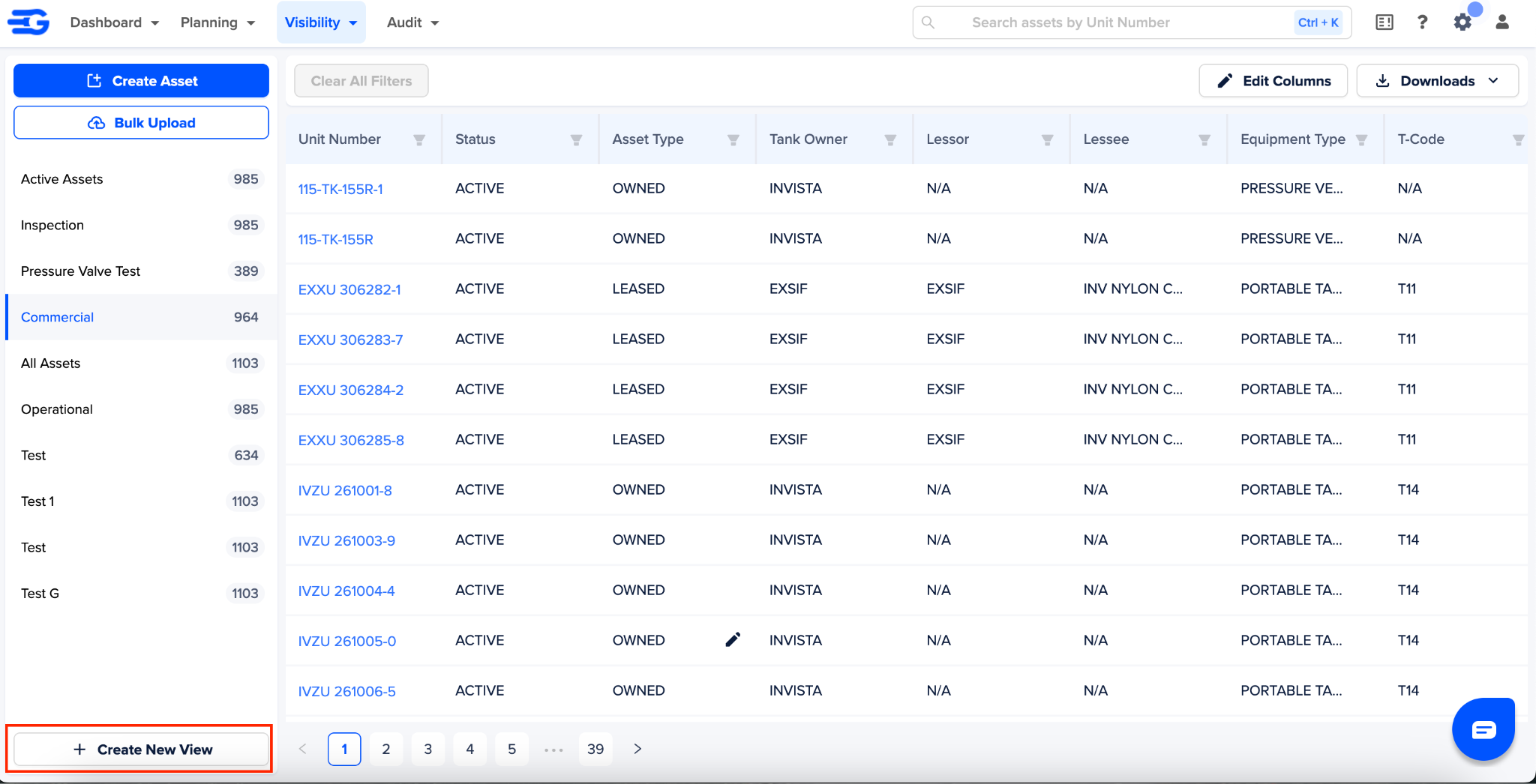
How to create custom views
In the left hand column Click on “Create New View” button, present at bottom
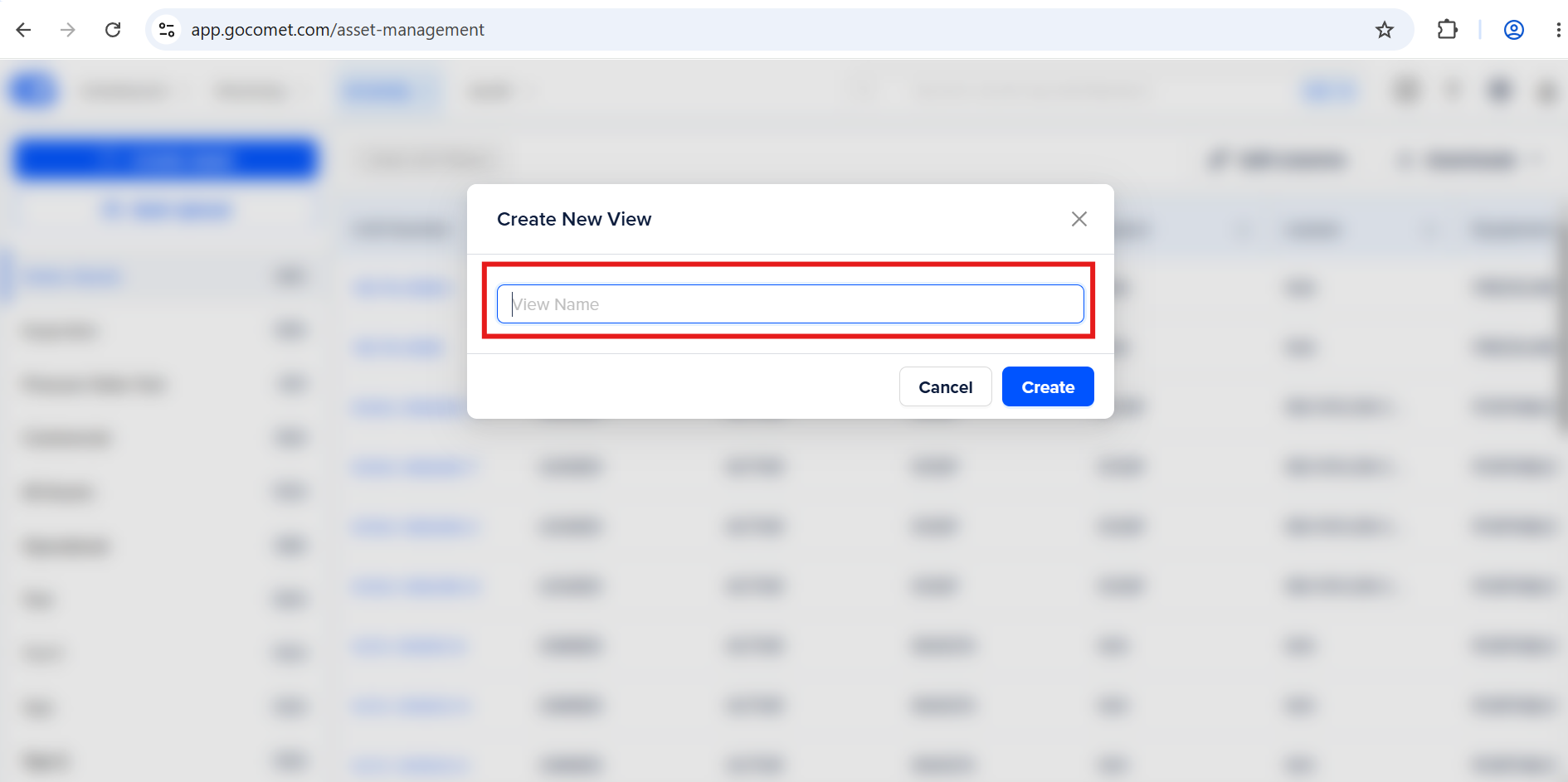
Enter a “View name”, then click on “Create”
The view will be created and added in the left column, as you can see in the below image
How to optimize views
You can optimize your views, by:
Editing columns in your views and
Applying filters on these columns
How to edit columns in views
Select the view you want to optimize
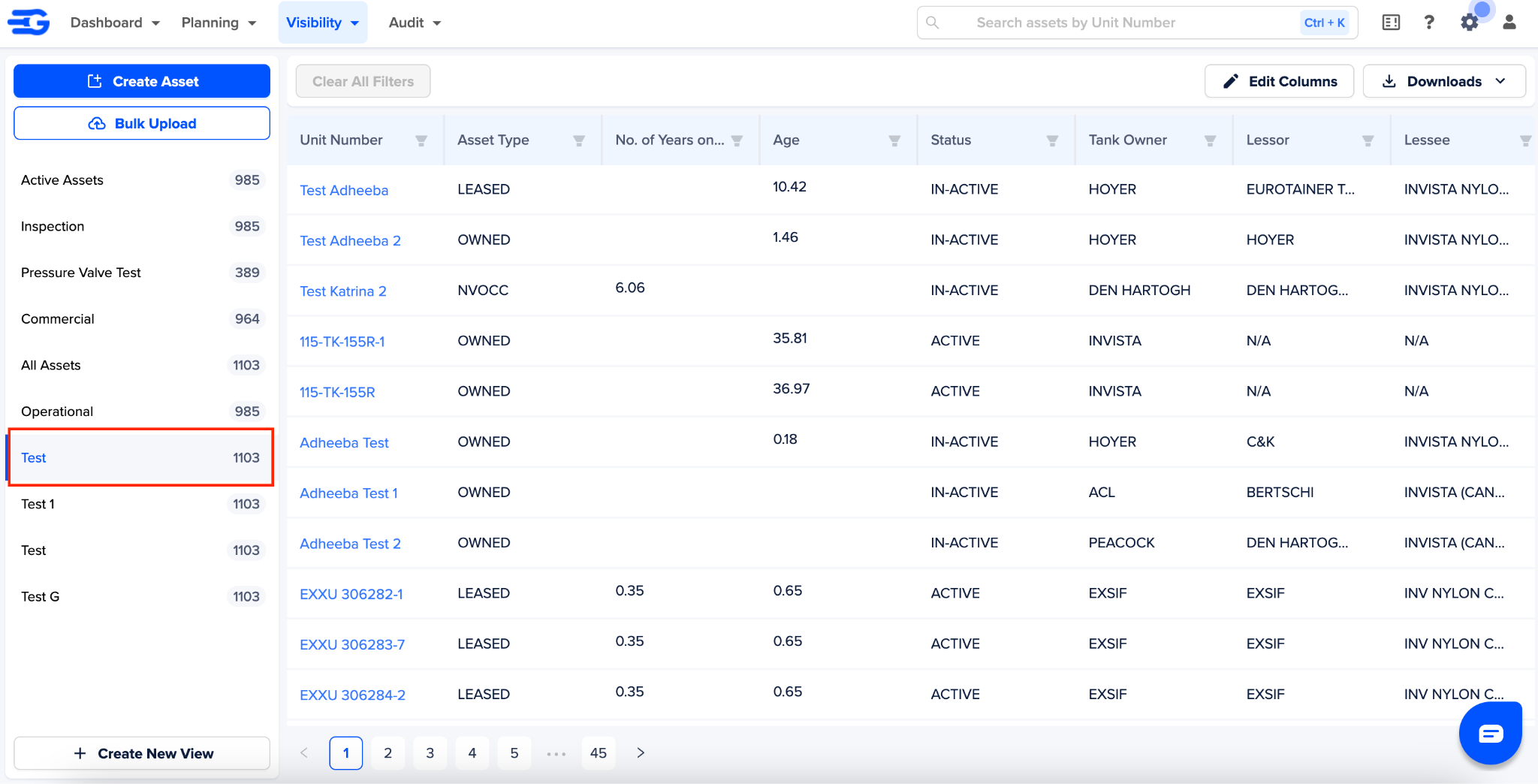
Then click on “Edit Columns” button
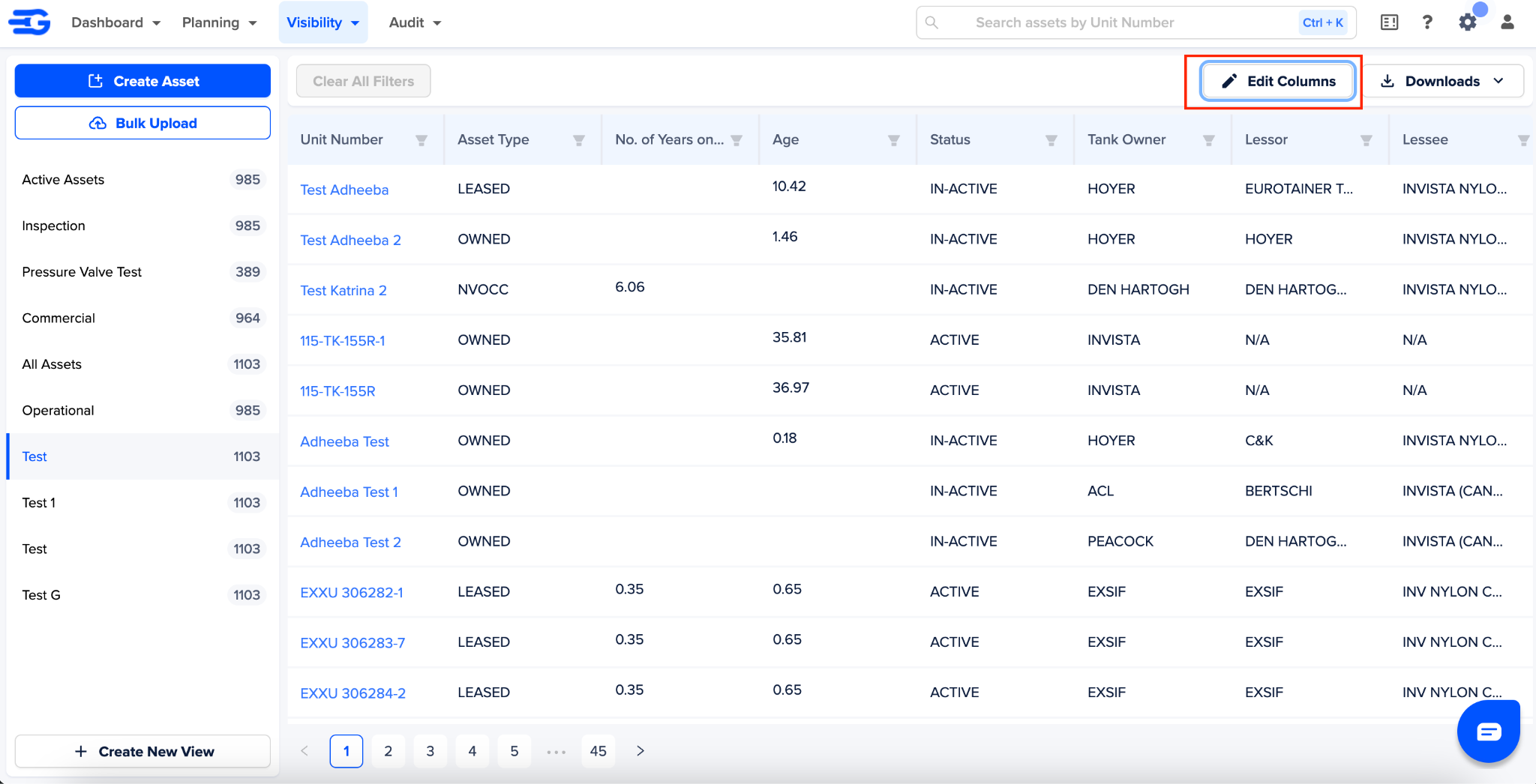
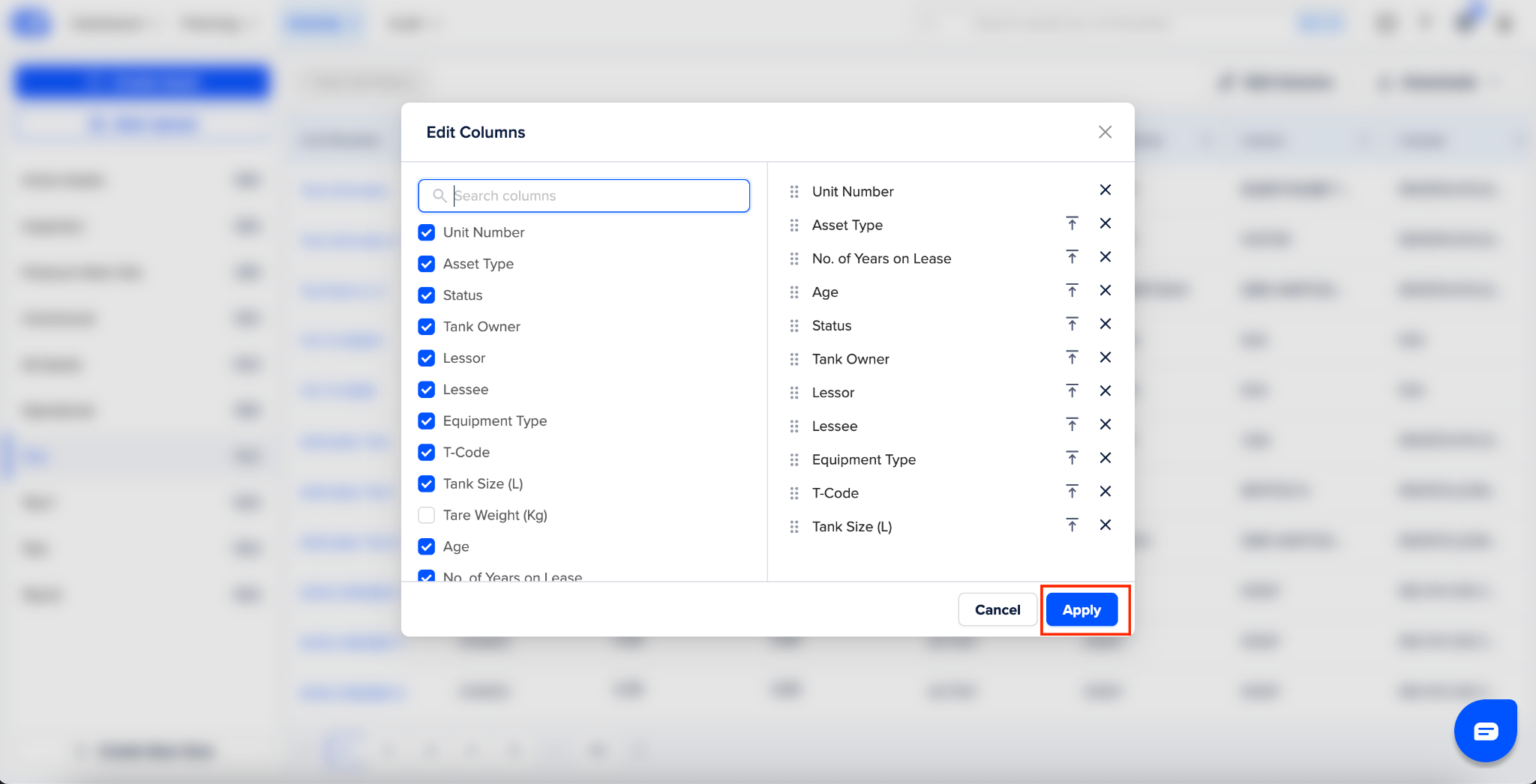
This will open the edit column modal.
The left hand side scape contains all the columns, the right hand side include the columns present in the selected view
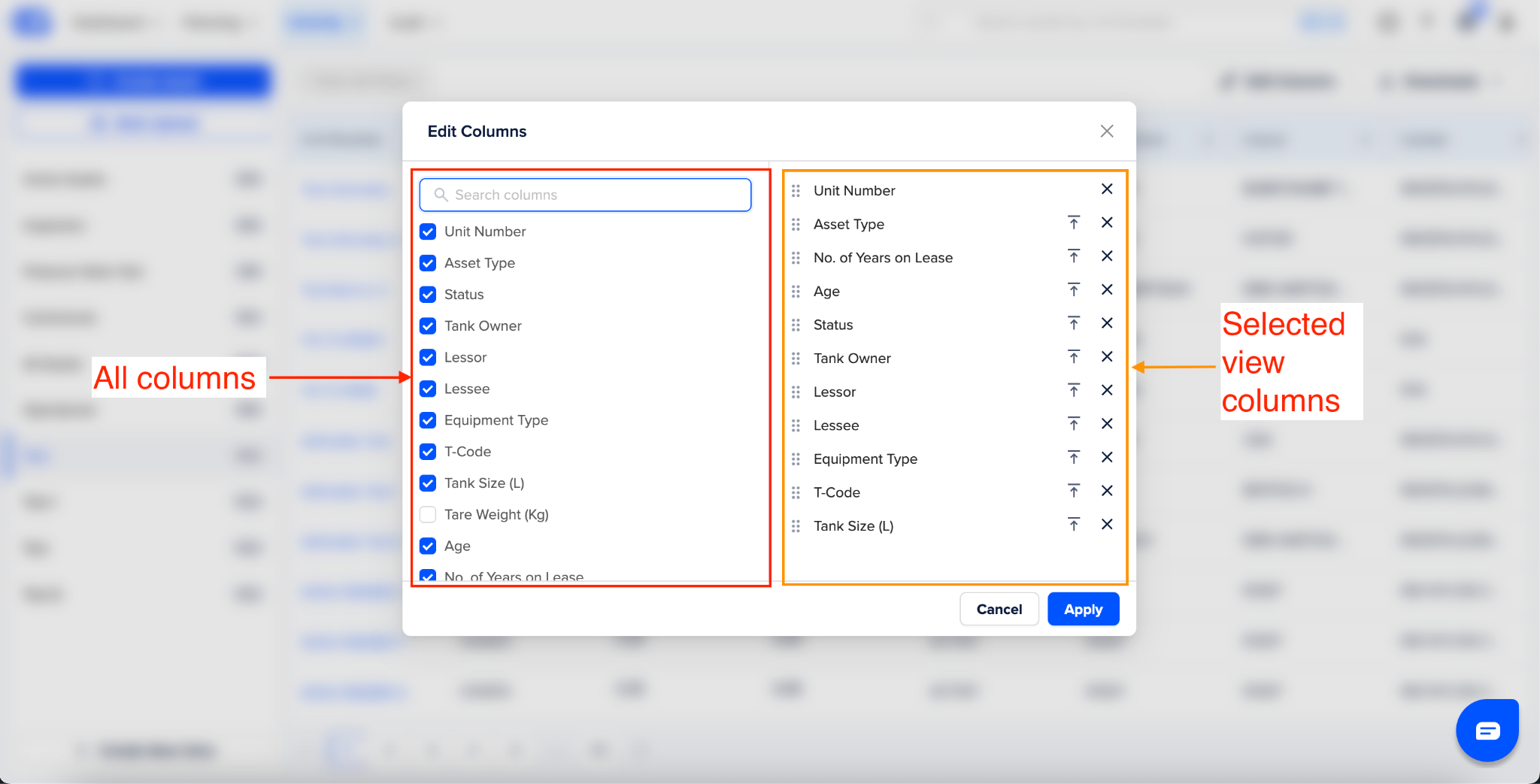
Through this modal you can:
Add new column(s) - Click on column name in the left hand side space to add it. You can also search the column name in the search bar
Remove existing column(s) - Click on the cross icon in the left hand space to remove a column
Re-order column(s) - You can drag the columns up and down in the left hand space to achive the desired order
Once you are happy with the changes, click on “Apply” Button and your view will be updated. Clicking on “Cancel” button will close the modal window without applying the changes.
Apply column filters - Through column filters you trim down the asset information you are looking for.
To apply column filter:
Identify the column on which you want to apply the filter.
Click on the filter icon next to column name
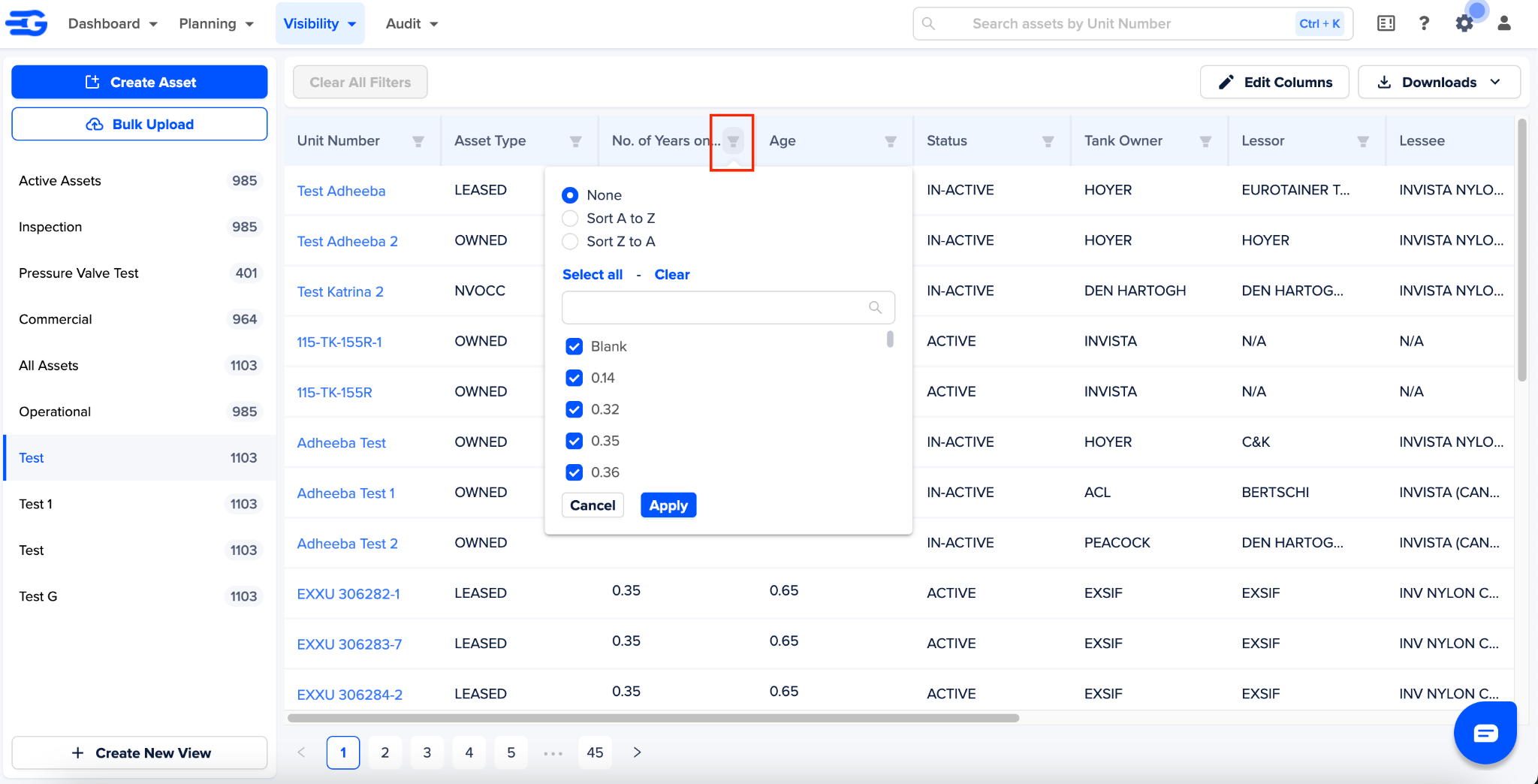
Now you can
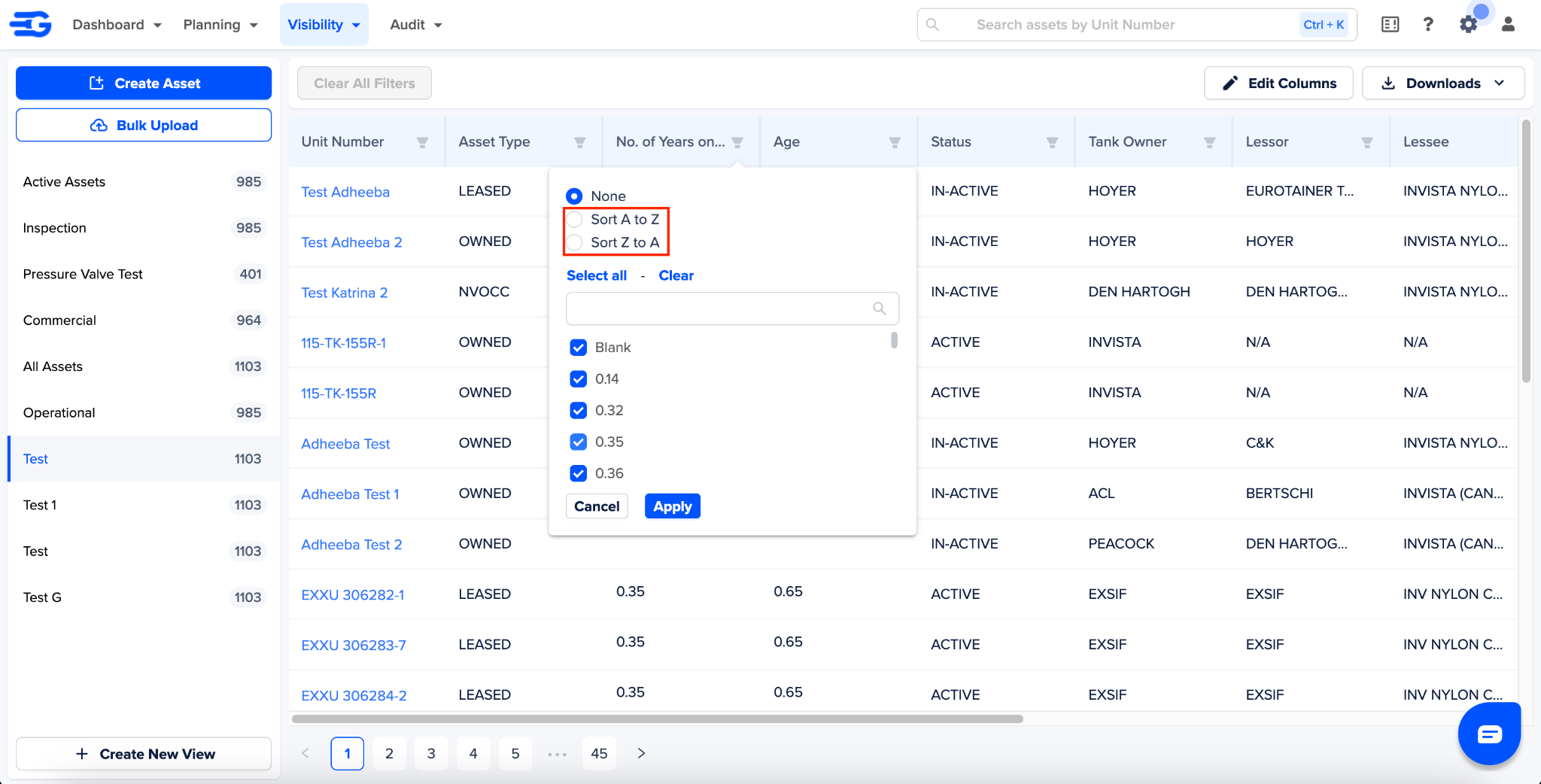
Sort the column values ascending and descending
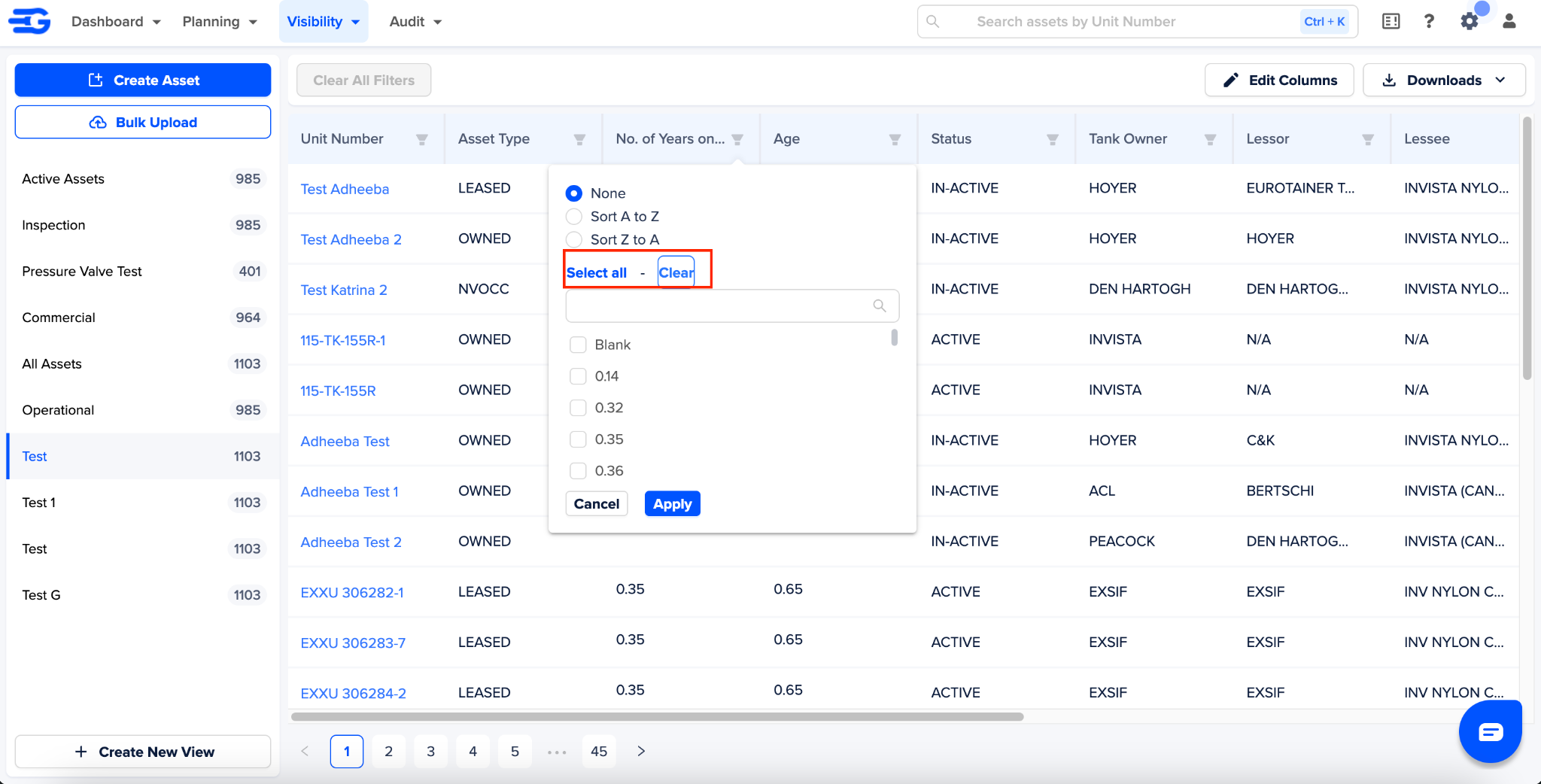
Select all or clear all selected assets
Search for a specific value
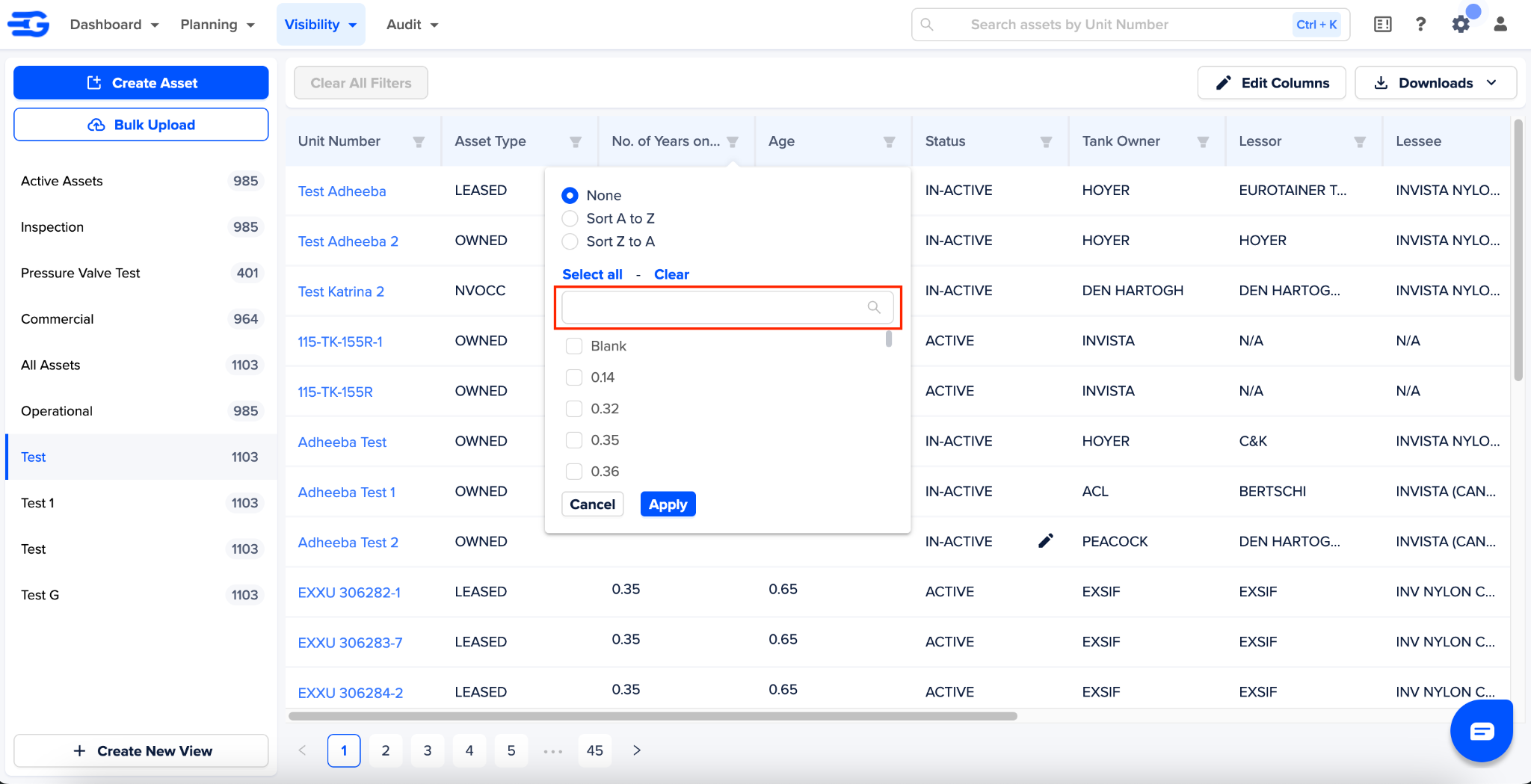
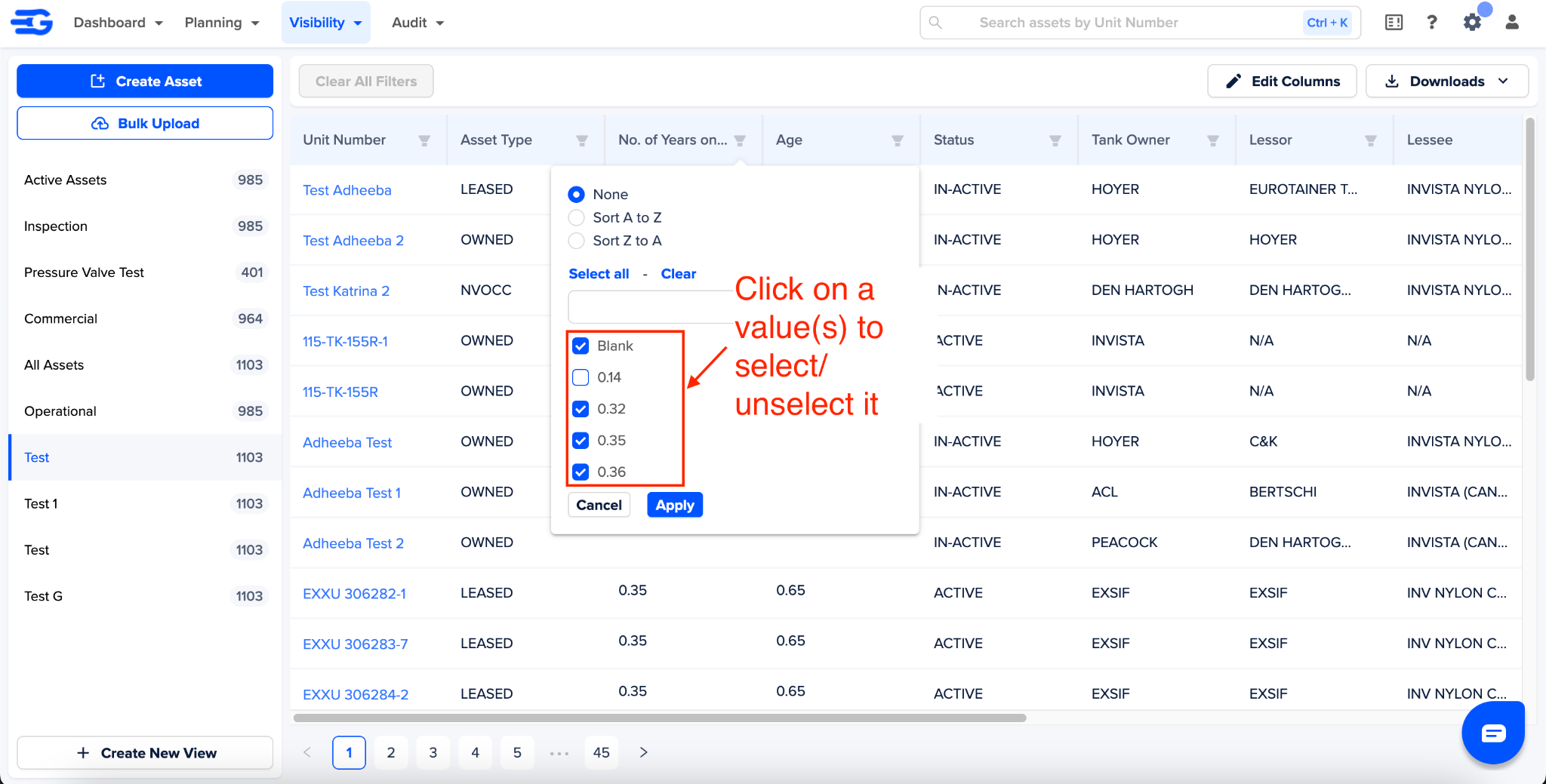
Manually select/un-select values
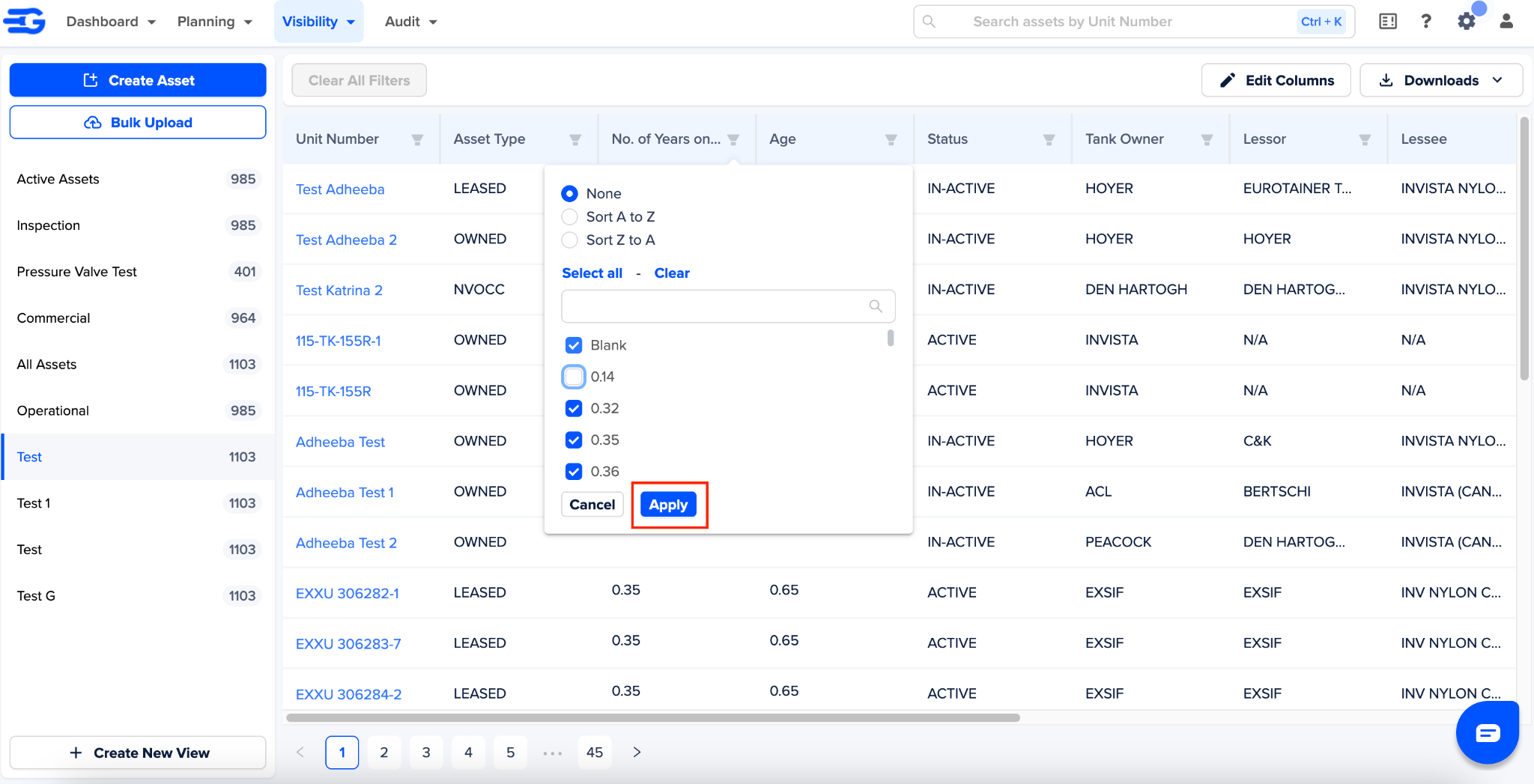
Once you have taken the required action in the filter click on “Apply”
How do clear filters work
If you want to delete the allied filters for a view you can do it, by simply clicking on “Clear All Filter” button.
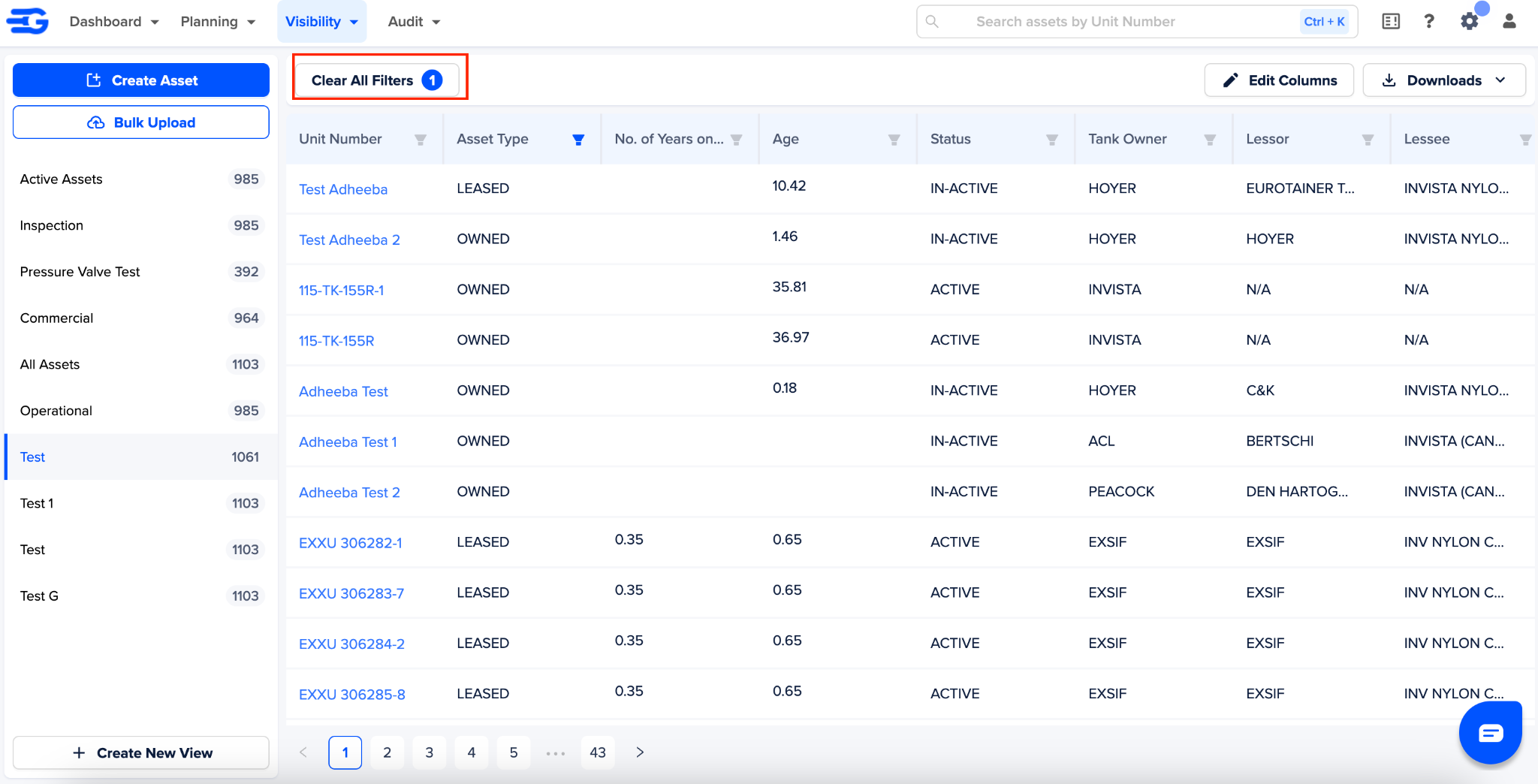
Note: For default view, the default filers will not be affected even when you click on “Clear All Fileters” button.
Was this article helpful?
That’s Great!
Thank you for your feedback
Sorry! We couldn't be helpful
Thank you for your feedback
Feedback sent
We appreciate your effort and will try to fix the article