Adding team members:
1. Log in to your GoComet Account: Login
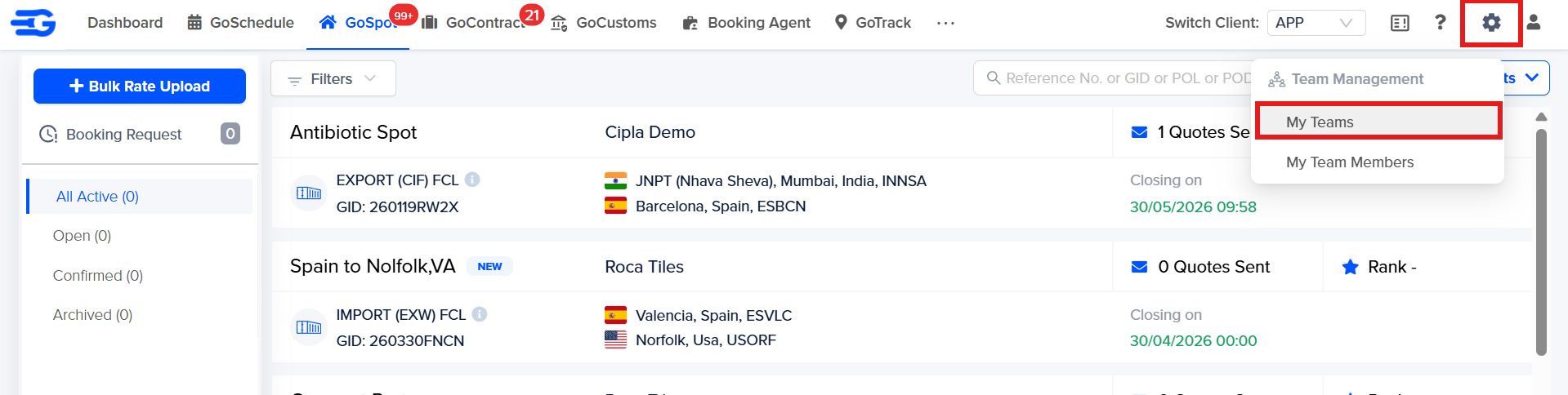
2. Hover on Settings icon and click on My Teams
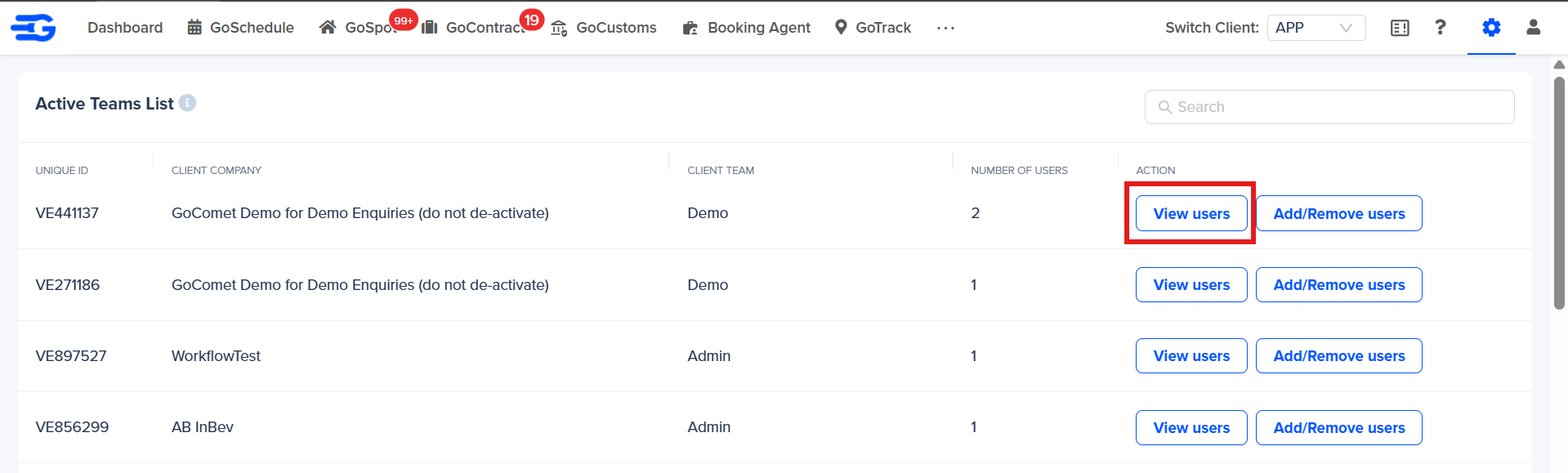
3. In the “Active Teams List” click on 'View Users'
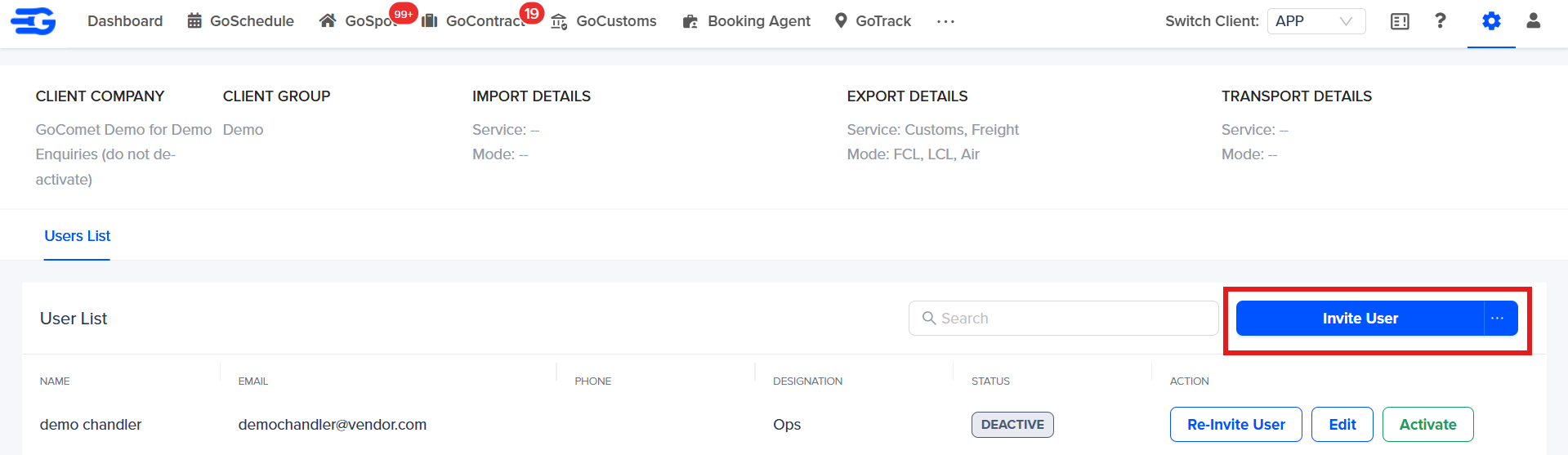
4. Under the users list tab, Click on "Invite Users" to get the dialog box to add the details of the user.
- User's Name: Enter the name of the user to be added
- Email: Enter the Email ID of the user to be added
- Phone: Enter the contact number of the user to be added
- Designation: Enter the designation of the user to be added
- Select Teams: Select the team to which the said user is to be added (it will be already mentioned)
- Timezone: Select the applicable timezone for the user
- Access Control: Set the access to be allowed to the user
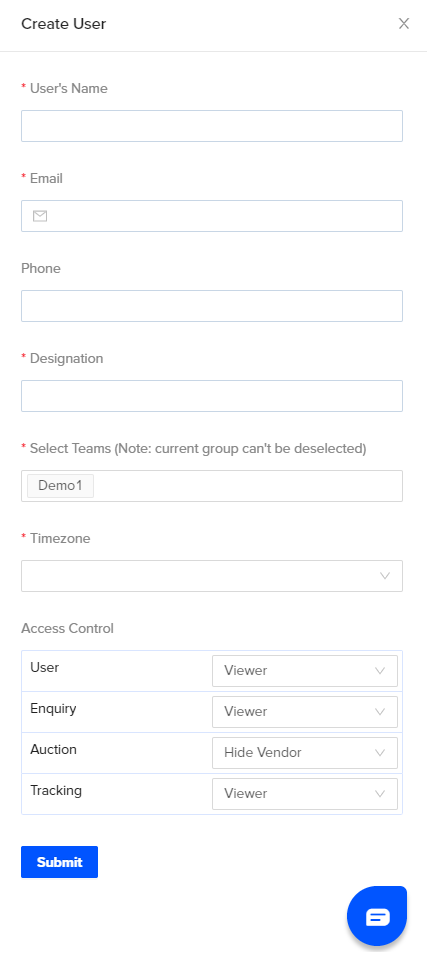
After filling the required fields, click on "Submit" to save the user.
Editing the added user:
Editing User details > Click on "Edit" icon on the right corner > Make the changes in the necessary fields> Click on Submit.
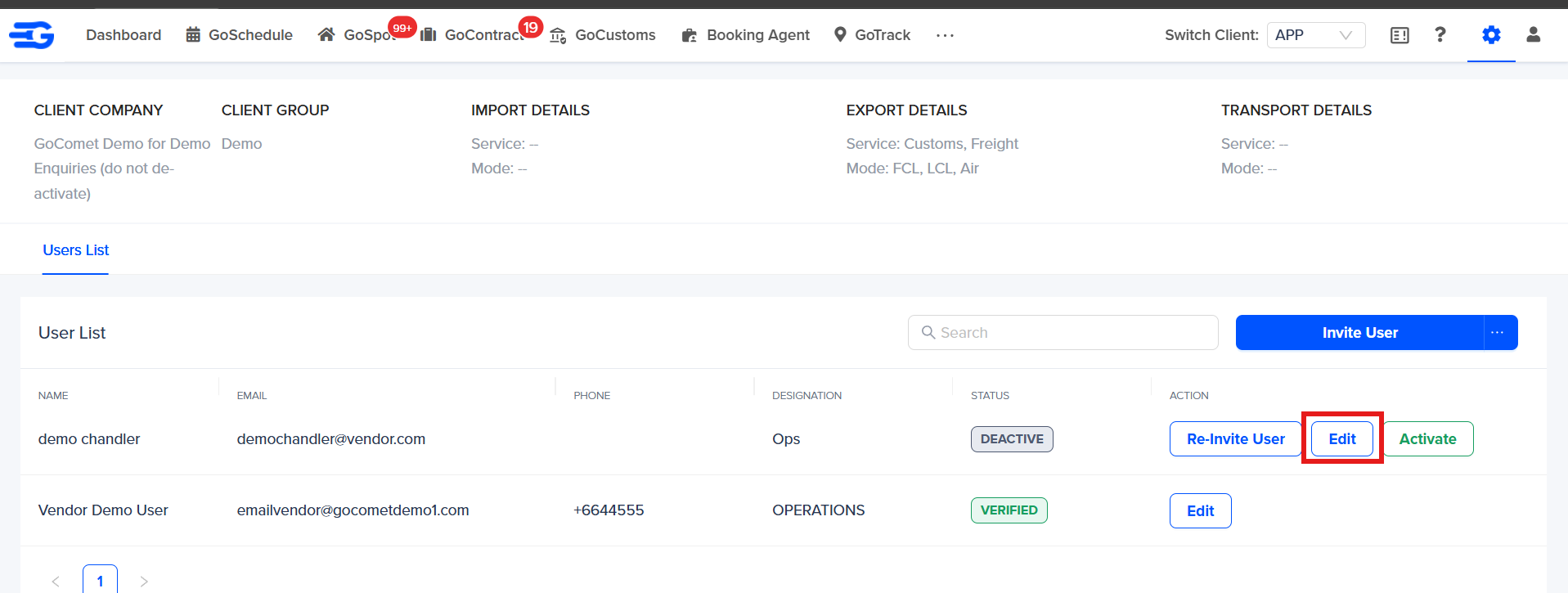
Activating/Deactivating added users:
To deactivate any active user click on "Deactivate"
To activate any deactivated user click on "Activate"
Was this article helpful?
That’s Great!
Thank you for your feedback
Sorry! We couldn't be helpful
Thank you for your feedback
Feedback sent
We appreciate your effort and will try to fix the article